
Connect QuickBooks
Connecting QuickBooks Online lets you send your TenantLedger rent, payments, bills, and deposits straight into your QuickBooks books — no double entry. This article covers making (and removing) the connection. Sending your records across is covered in Export your data to QuickBooks.
Before you start
- You need a QuickBooks Online account and the sign-in credentials for it.
- QuickBooks must be enabled for your account. If you don’t see a QuickBooks tile on the Settings page, it isn’t turned on for your plan — contact support to ask about it. (Like other add-ons, it may not be enabled for every account.)
Steps
Connect QuickBooks
-
In the top navigation bar, click the Settings gear, then click Settings. (You can also click Settings in the left sidebar if it’s shown.)
-
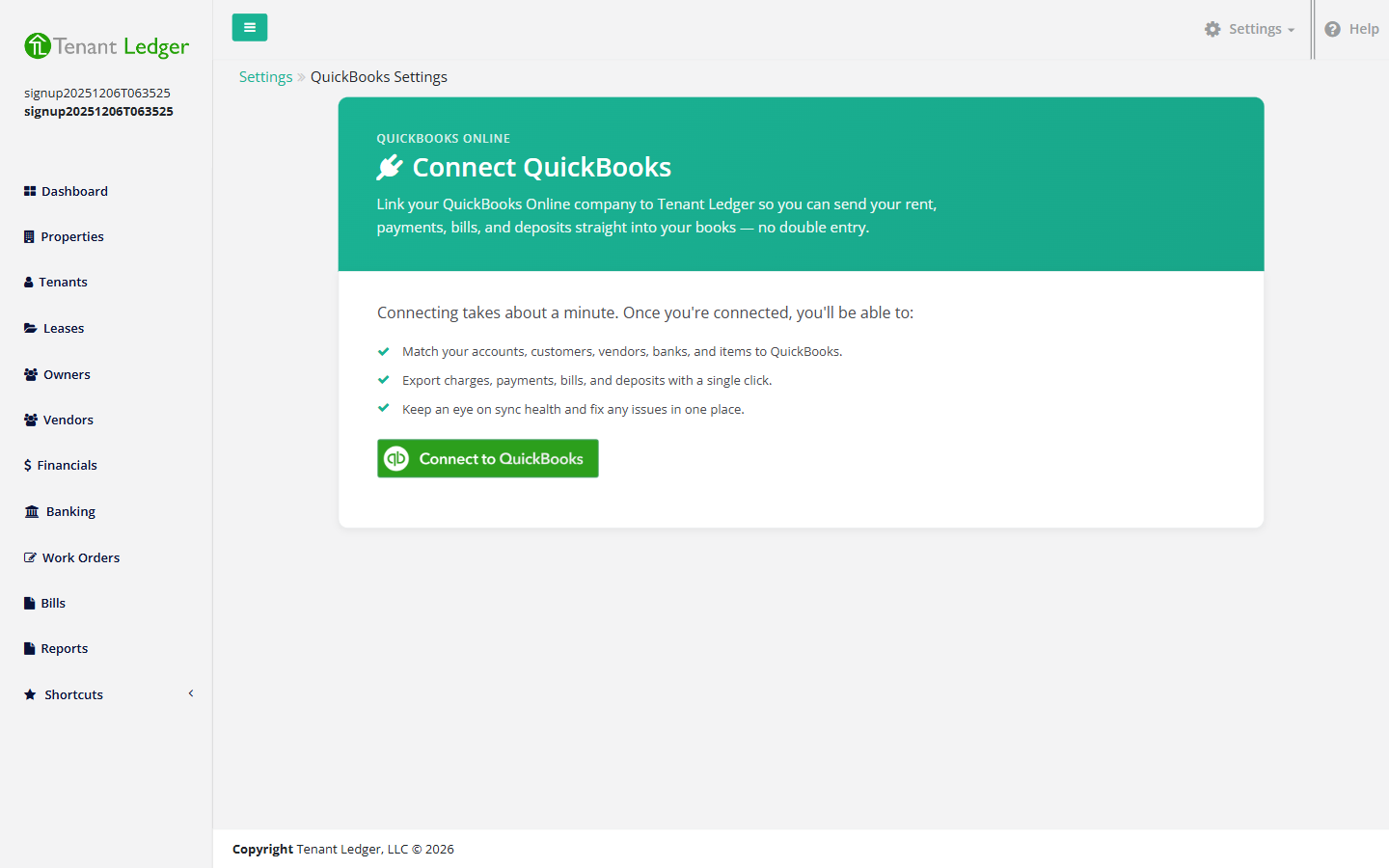
On the Settings page, click the QuickBooks tile.
-
Click the green Connect to QuickBooks button.
-
You’ll be taken to Intuit’s secure sign-in page. Sign in to QuickBooks and choose the company you want to connect.
-
Approve the connection. Intuit returns you to TenantLedger’s QuickBooks settings page. Connecting takes about a minute.
Disconnect (unlink) QuickBooks
- Return to the QuickBooks settings page (Settings → QuickBooks tile).
- Click Disconnect.
- Confirm when prompted (“Disconnect QuickBooks? You can reconnect anytime.”).
Disconnecting revokes TenantLedger’s access at Intuit and clears the saved connection on your side. It does not delete anything already in your QuickBooks company, and it doesn’t change your TenantLedger records — it simply stops the two from being linked. You can reconnect at any time by running the connect flow again. (If TenantLedger and Intuit have already lost the link, you may see “Already disconnected” — that’s fine; the end result is the same.)
What you’ll see
Once connected, the QuickBooks settings page shows a green Connected badge along with your QuickBooks company name and address, and an approximate date when the connection expires. You’ll also see the next steps laid out: Link your QuickBooks data and Export your financials.
Tips
- Link your data first. Before your first export, click Open link wizard to match your TenantLedger accounts, customers, vendors, banks, and items to the matching records in QuickBooks. This is a one-time setup, and the export won’t work for records that aren’t linked yet. See Export your data to QuickBooks.
- If your connection expires, the QuickBooks page shows a reconnect banner — just click through the connect flow again to refresh it. Connections expire on a schedule set by Intuit; reconnecting is quick.
- A nightly auto-sync toggle appears on the QuickBooks page for some accounts. It’s off by default and isn’t enabled for every plan; manual export is the standard way to send your data.
Related articles
Still stuck? Email support@tenantledger.com and a real person who knows the product will help.