
Add a tenant
What this is
A tenant is a person (or company) who rents from you. Adding a tenant creates their record so you can attach them to a lease, send them charges, and receive their payments. You can also add applicants you’re still considering by setting their status to Potential — they then appear on your Potential Tenants list.
When to use it: Add a tenant when you take on a new renter, or when you want to track a prospective applicant before any lease is signed. You can add the tenant record before or after they’re tied to a lease.
Before you start
- None. You can add a tenant before or after they’re tied to a lease or unit.
Steps
-
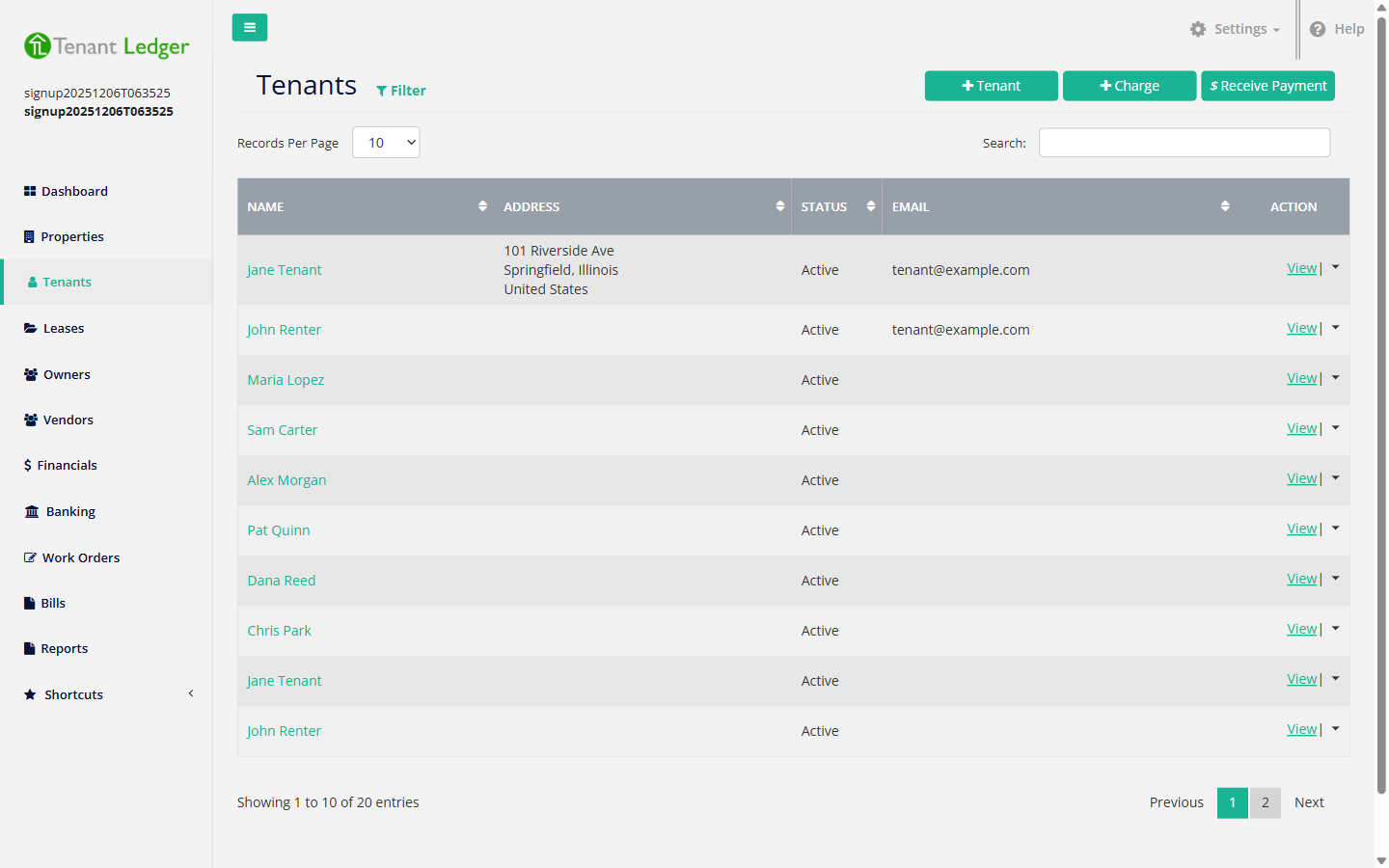
In the left sidebar, click Tenants.
-
Click Add Tenant (or use Shortcuts > Add Tenant in the sidebar).
-
Fill in the tenant’s details:
- First Name (required) — the tenant’s first name. For a company tenant, you can enter the company name here.
- Last Name — the tenant’s last name.
- Home Phone and Cell Phone — contact numbers.
- Email — the tenant’s primary email. This is used as their login if you enable the Tenant Portal, so add it if you plan to use that feature.
- Alternative Email — a backup email address, if you have one.
- Address, Country / State / City, and Zip Code — the location dropdowns cascade (country first, then state, then city).
- Status (required) — choose Active for a current tenant, or Potential for an applicant you’re still evaluating. Potential tenants show up on your Potential Tenants list.
- Email Tenant Receipt of Charge — check this to have the tenant emailed automatically whenever a charge is recorded for them.
- Email Tenant Receipt of Payment — check this to have the tenant emailed automatically whenever a payment is recorded for them.
-
Click Save.
What you’ll see
After saving, you land on the tenant’s Summary page with a confirmation that the tenant was added. The tenant now appears in your Tenants list, ready to attach to a lease.
Tips
- Add an email address if you plan to enable the Tenant Portal later — it relies on the tenant’s email.
- Set the status to Potential for prospective renters; they then appear on the Potential Tenants list. See View available units and potential tenants.
Related articles
Still stuck? Email support@tenantledger.com and a real person who knows the product will help.