
Customize your branding (logo and colors)
What this is
Email branding controls how the emails you send to tenants look — your logo, accent color, the name they appear to come from, and the intro and sign-off text wrapped around invoices and receipts. Instead of generic system emails, your messages look like they come from your business.
When to use it: set it up early so every invoice and receipt is on-brand from day one, and update it whenever your logo, colors, or contact details change. There’s a separate Portal Branding tile for the look of the tenant and owner login portals.
Before you start
- Have your logo file ready as a PNG or JPG. A wide logo around 400×120 pixels (a 3:1 ratio) works best. A PNG with a transparent background looks cleanest on the white email background.
Steps
-
In the top navigation bar, click the Settings menu (the gear icon, top right), then click Settings.
-
On the Settings page, click the Email Branding tile.
-
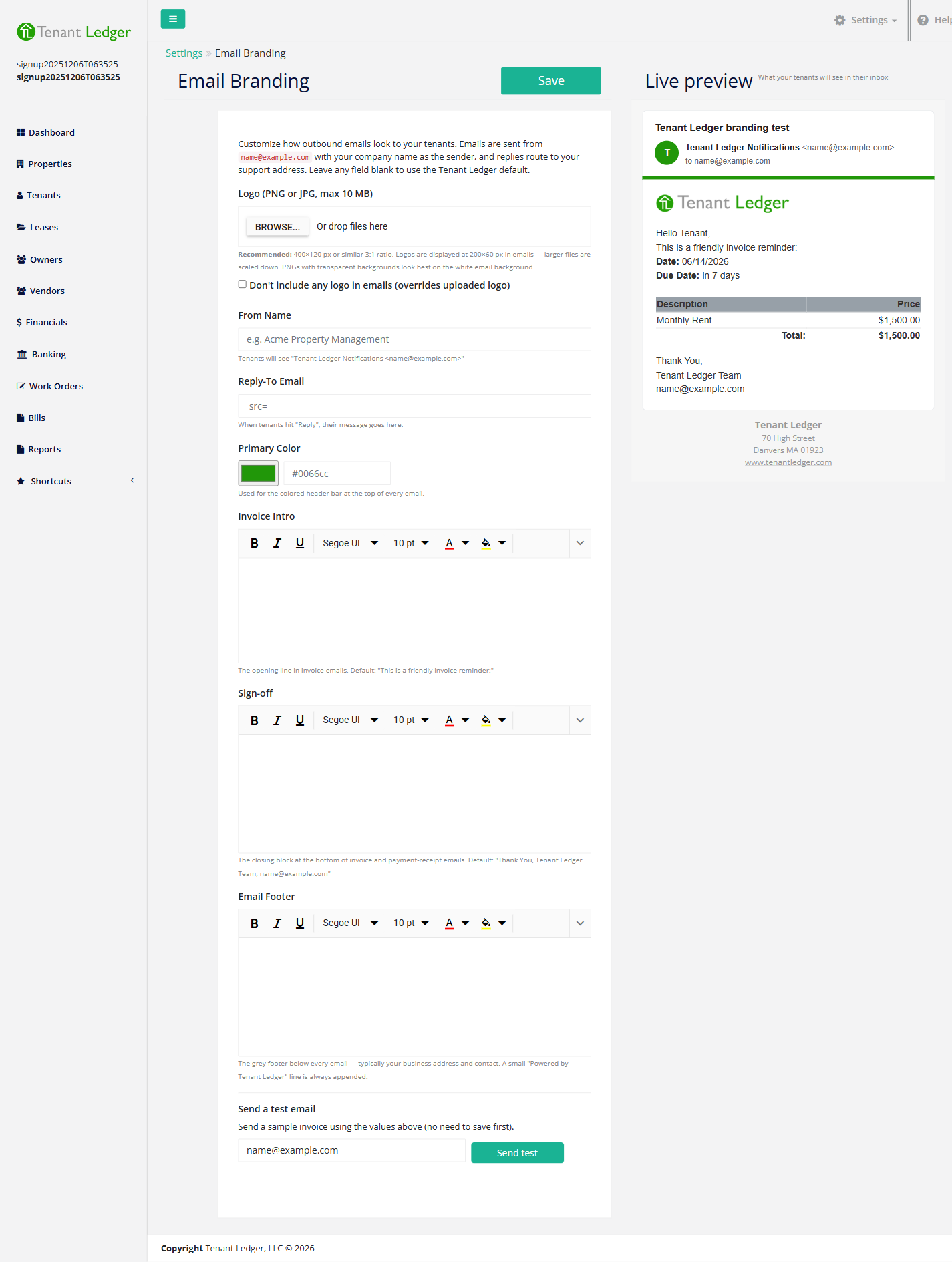
Upload your Logo using the upload box. To go back to no logo, click Remove. To send emails with no logo at all, tick Don’t include any logo in emails.
-
Set your Primary Color using the color picker, or type a hex code (for example,
#0066cc). This is the colored bar at the top of every email. -
Fill in the sender and text fields:
- From Name — the name tenants see the email is from (for example, “Riverside Property Management”).
- Reply-To Email — where tenant replies are delivered.
- Invoice Intro — the opening line of invoice emails.
- Sign-off — the closing block at the bottom of invoice and receipt emails.
- Email Footer — the grey footer text, typically your business address and contact details.
-
Watch the Live preview panel on the right update as you type, so you can see exactly what tenants will receive.
-
(Optional) Under Send a test email, enter your own email address and click Send test to preview a sample invoice in your inbox. You don’t need to save first.
-
Click Save (top right) to apply your branding.
What you’ll see
A confirmation that your branding was saved. From then on, emails to your tenants use your logo, color, sender name, and footer. Leave any field blank to fall back to the Tenant Ledger default.
Tips
- Use the test email to check how your logo and colors look on a real screen before relying on them.
- There’s a separate Portal Branding tile for the look of the tenant and owner login portals. That’s a different screen from Email Branding.
Related articles
Still stuck? Email support@tenantledger.com and a real person who knows the product will help.