
Delete a user
What this is
Deleting a user removes a team member’s login so they can no longer sign in. Deleting is a soft delete: the person is removed from your Users list, but the record is preserved behind the scenes. Use this when someone leaves your team or no longer needs access.
When to use it: offboard a staff member or revoke access for someone who has left.
What blocks this delete
Nothing blocks a user from being deleted — users are always deletable. There are no dependent records that hold a user in place, so you can remove anyone from your Users list at any time.
Because removing a user immediately revokes their ability to sign in, take a moment to confirm you’ve picked the right person before you confirm. If the change is only temporary, consider lowering their access level instead of deleting them — see Edit a user.
Steps
-
In the top navigation bar, click the Settings menu (the gear icon, top right), then click Settings.
-
On the Settings page, click the Users tile.
-
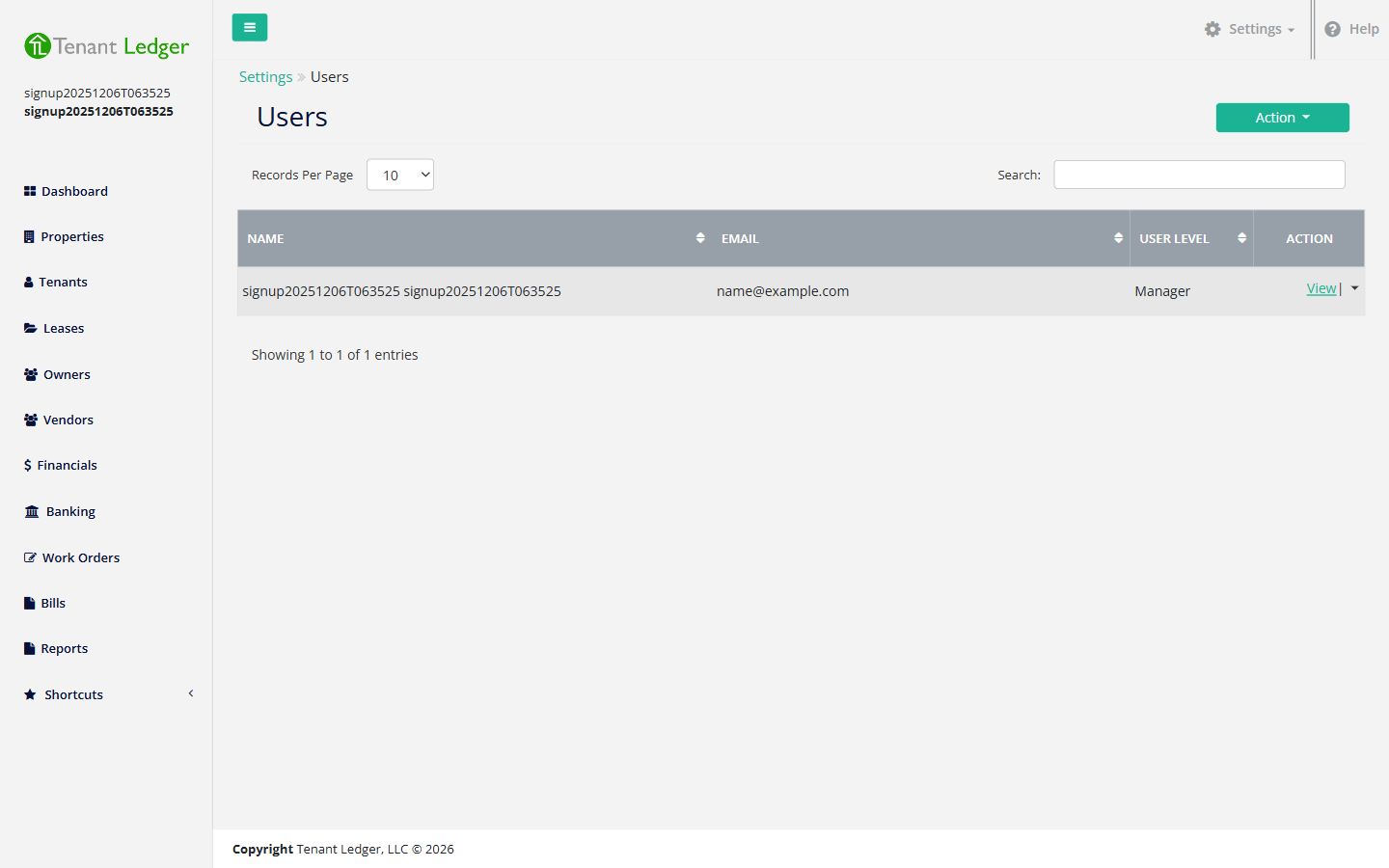
Find the person in the list, open the dropdown next to View on their row, and click Delete.
-
A confirmation page opens showing the user’s number, name, and company, with the heading “Are you sure you want to delete the following User?”.
-
Review the details to make sure it’s the right person, then click Delete. (Click Cancel to back out without removing anyone.)
What you’ll see
- Success: you’re returned to the Users list and the person no longer appears there. They can no longer sign in.
- If you change your mind first: clicking Cancel on the confirmation page returns you to the Users list with no changes.
Tips
- Removing a user revokes their login. If they’re only stepping away temporarily, lower their access level instead — see Edit a user.
- Make sure at least one person keeps administrator access to your account so settings, billing, and users can still be managed.
Related articles
Still stuck? Email support@tenantledger.com and a real person who knows the product will help.