
Delete a Chart of Accounts account
What this is
Deleting removes an income/expense account you no longer need from your Chart of Accounts. Deleting is a soft delete: the account is hidden from your lists and dropdowns, but the underlying history is preserved so past reports still make sense. To protect your records, the app blocks the delete if anything still depends on the account.
When to use it: remove a custom account you created by mistake or no longer use. You can’t delete the standard built-in accounts.
What blocks this delete
The app checks for everything below and will refuse the delete if any of it exists. Clear these first, in this order:
- Transactions using the account. If any charge, payment, or bill is tagged with this account, you can’t delete it. Reassign those transactions to a different account, or delete them, first.
- Sub-accounts under it. If this account is a parent with other accounts nested beneath it, delete or re-parent those sub-accounts first. (See Add a sub-account for how nesting works.)
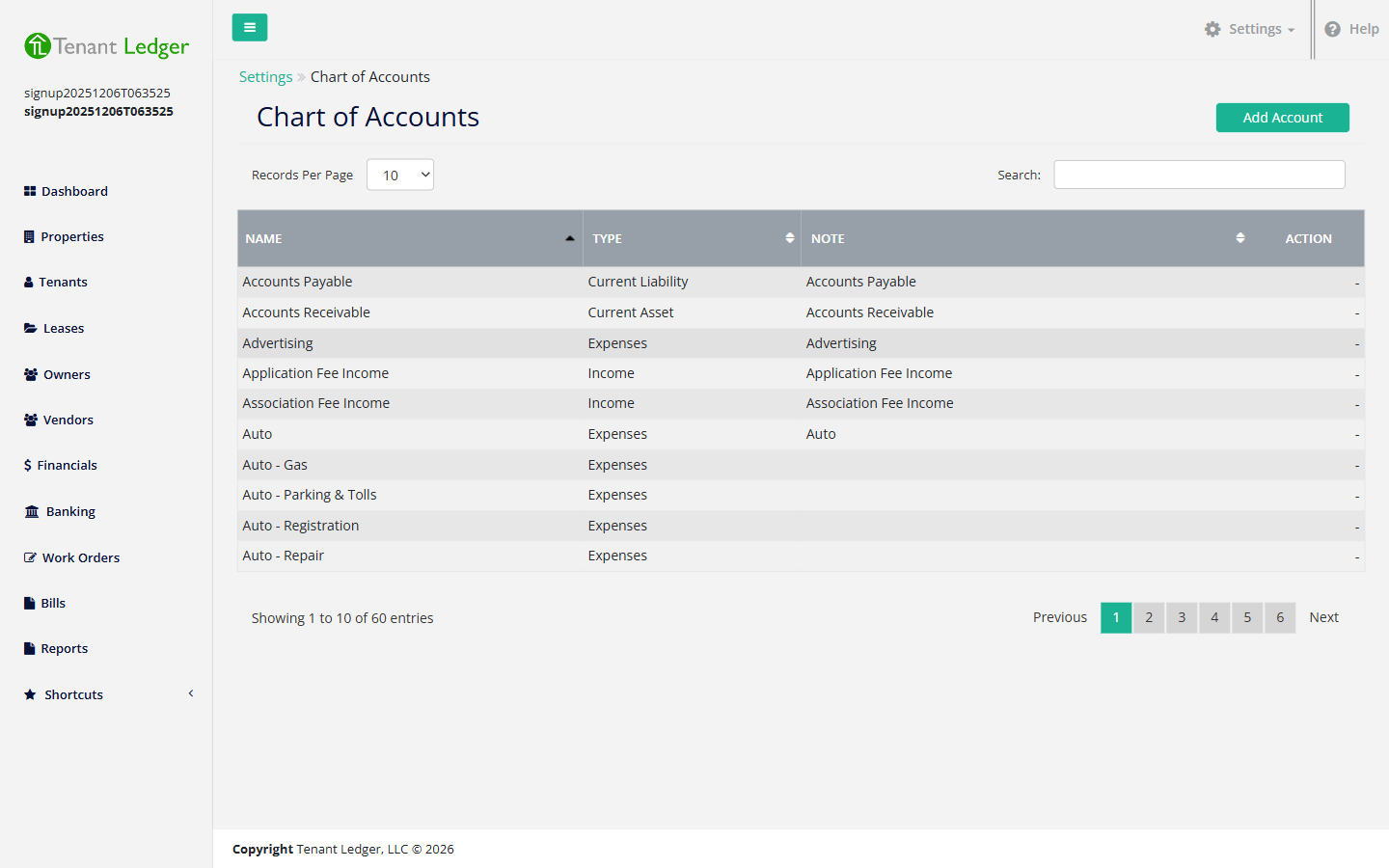
- System-required accounts can never be deleted. A few built-in accounts — including Prepaid Rent and Rent Income — are required by the system and cannot be removed under any circumstances. These show a dash (—) in the Action column instead of a Delete option.
When a delete is blocked, you’ll see a message like:
“This chart account cannot be deleted because it is used by: 3 charges, 1 bill, 2 sub-accounts. You must remove all references to this account before deleting it.”
The exact list reflects what’s actually in the way for your account. If you try to delete an account that’s linked to a charge or bill, you may also see a pop-up that reads “This account is currently linked to a Charge or Bill. Please delete the charge or bill before deleting this account.”
Steps
-
In the top navigation bar, click the Settings menu (the gear icon, top right), then click Settings.
-
On the Settings page, click the Chart of Accounts tile.
-
Find the account you want to remove. On its row, open the small dropdown next to Edit and click Delete. (Protected/system accounts show a dash and have no Delete option.)
-
In the confirmation pop-up, follow the on-screen prompt to confirm, then click DELETE.
What you’ll see
- Success: the account disappears from your Chart of Accounts list and you see a confirmation that it was deleted.
- Blocked: the account stays in the list and you see a message explaining what’s using it (charges, payments, bills, or sub-accounts) and that you must remove those references first.
Tips
- If you can’t remove the transactions using an account, you don’t have to delete it — you can rename it instead so it’s clearly out of use. See Edit a Chart of Accounts account.
- Not sure what’s blocking the delete? See Why can’t I delete this?.
Related articles
Still stuck? Email support@tenantledger.com and a real person who knows the product will help.