
Invite a team member (add a user)
What this is
Adding a user gives a member of your team their own login to Tenant Ledger so they can help manage properties, process payments, and handle work orders. You set their access level when you add them, and the app emails them a temporary password to sign in with.
When to use it: bring on a property manager, bookkeeper, or assistant who needs their own account. Each person should have their own login rather than sharing one.
Before you start
- Have the person’s first name, last name, and email address ready. The email must be one that isn’t already used by another user.
Steps
-
In the top navigation bar, click the Settings menu (the gear icon, top right), then click Settings.
-
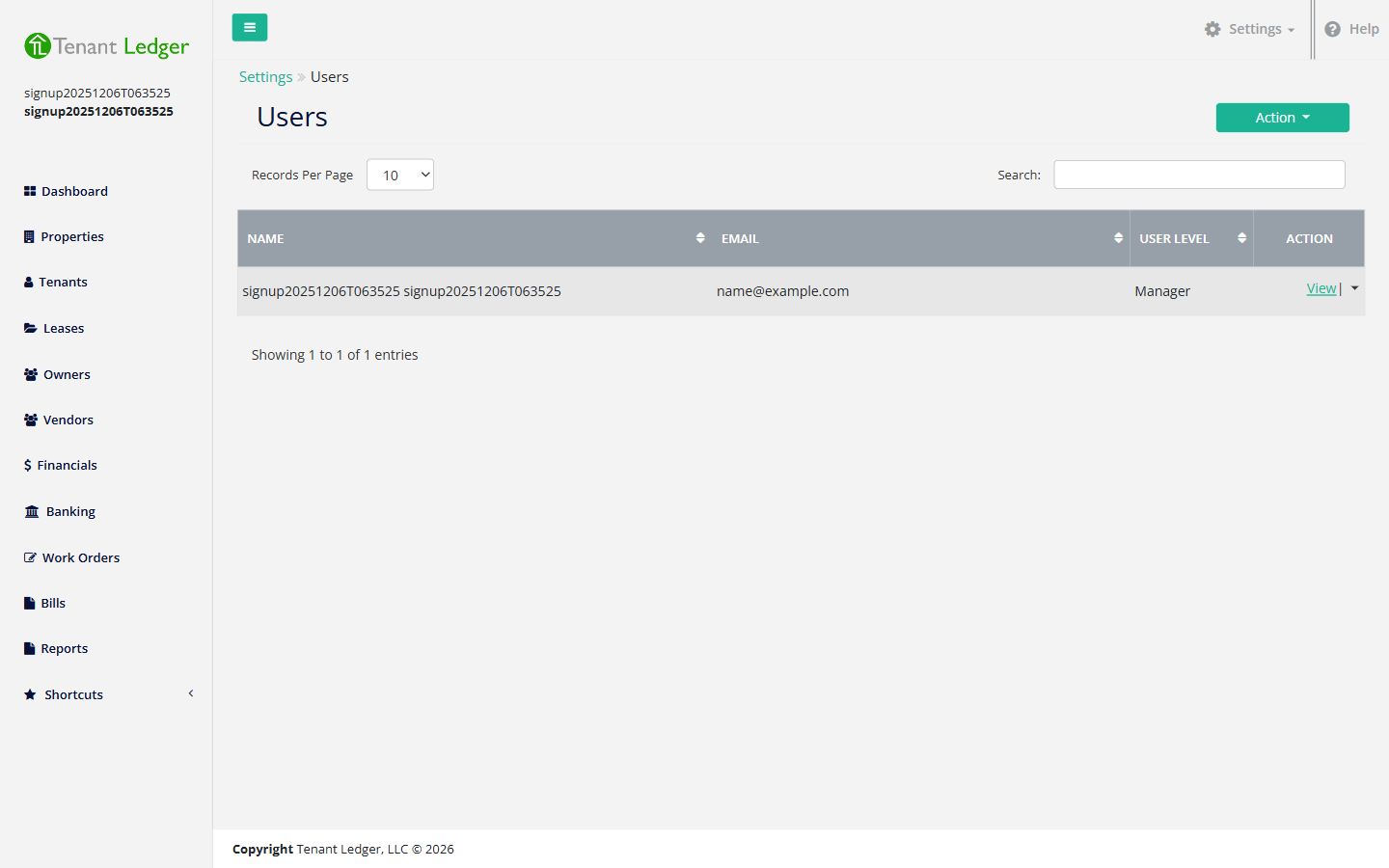
On the Settings page, click the Users tile. You’ll see a list of your existing users with their name, email, and access level.
-
Click the Action button (top right), then click Add User. If you have no other users yet, click Add Your First User in the center of the page instead.
-
Fill in the new user’s details. Here’s what each field means:
- First Name (required) and Last Name (required) — the person’s name, shown in your Users list.
- Company — your company name, shown for reference and filled in for you. You don’t need to change this.
- User Level (required) — how much access the person gets. Choose:
- Administrator — full access, including settings, billing, and managing other users. Pick this only for owners and trusted managers.
- Manager — day-to-day management access for someone running properties, but without giving them everything an administrator can do.
- Employee — the most limited role, for staff who only need to handle their assigned work.
- Email (required) — the address where their welcome email and temporary password are sent. This also becomes their login.
-
Click Add User.
What you’ll see
The new person appears in your Users list with their name, email, and user level. They receive an email with a temporary password they can use to sign in for the first time.
Tips
- Each email address can be used only once. If the address already belongs to a user, you’ll see “User email already exists” — use a different address.
- Choose Administrator sparingly. Use Manager or Employee for people who shouldn’t reach settings, billing, or other users.
- Ask the new user to check their spam folder if they don’t see the welcome email, and to change their password after their first sign-in.
Related articles
Still stuck? Email support@tenantledger.com and a real person who knows the product will help.