
Understanding your Dashboard
What this is
The Dashboard is the first page you see after signing in — your portfolio’s home base. In one glance it tells you how many properties and active leases you have, how your income compares to your expenses this year, who’s behind on rent, and what needs attention (ending leases, open work orders, bills due). Every number is a live link, so the Dashboard doubles as a launchpad into the detailed lists behind it.
When to use it: check it at the start of each day or week to spot overdue rent and upcoming lease endings, and use the shortcuts to jump straight to whatever needs action.
Before you start
- None. The Dashboard is the home page of your account.
Steps
-
In the left sidebar, click Dashboard (it opens automatically when you sign in).
-
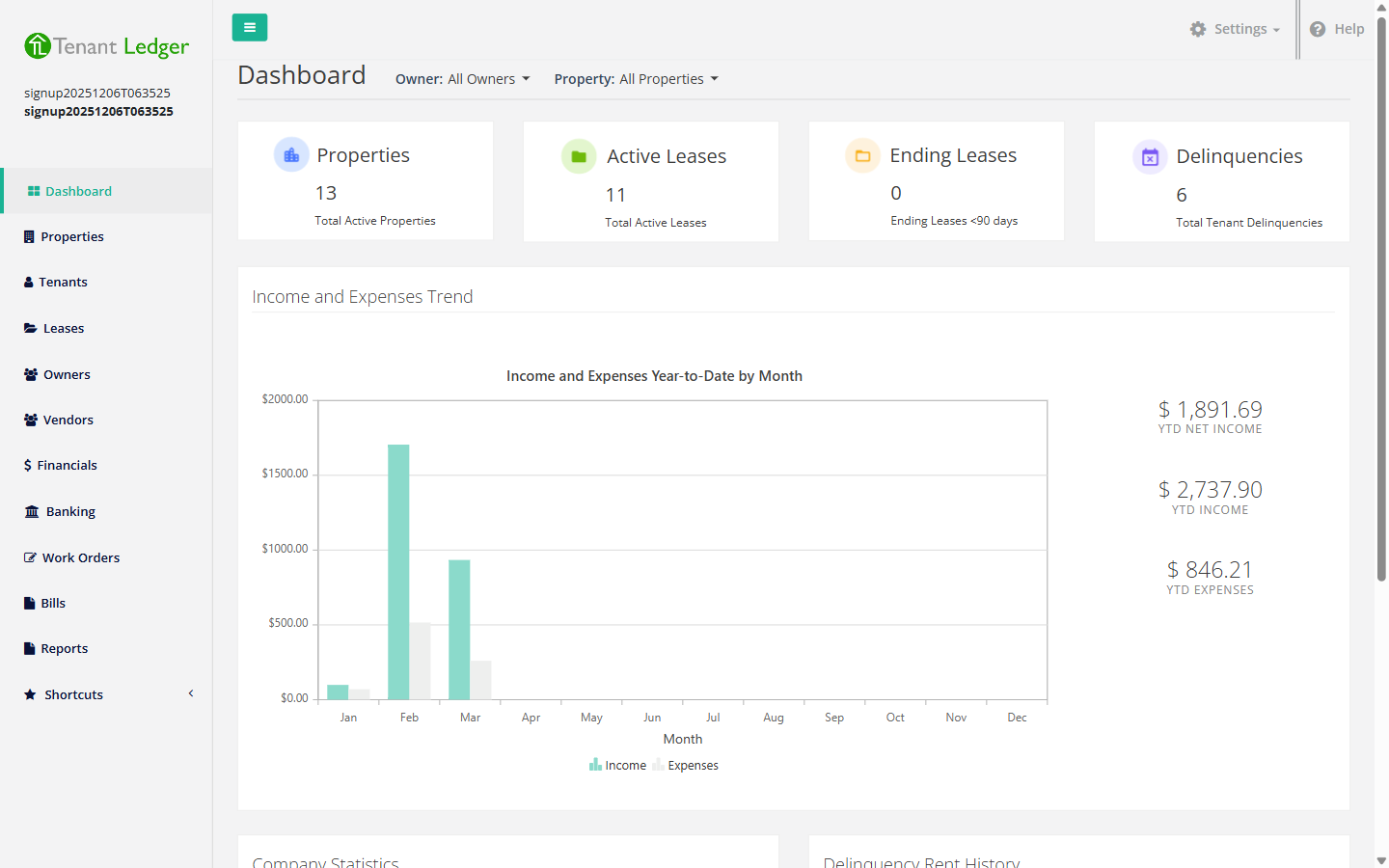
Look at the four summary tiles across the top:
- Properties - total active properties.
- Active Leases - leases currently in effect.
- Ending Leases - fixed-term leases ending within the next 90 days.
- Delinquencies - the number of tenants with an unpaid balance.
-
Review the Income and Expenses Trend chart. The bars show income and expenses month by month for the current year. On the right you’ll see your year-to-date Net Income, Income, and Expenses totals.
-
Use the Company Statistics list to jump to detail pages. Each line (Ending Leases, Delinquencies, Available Units, Work Orders, Potential Tenants, Bills Due) is a link that opens a full list.
-
Read the Delinquency Rent History panel to see overdue rent grouped by age: Coming Due, 1-30 Days, 31-60 Days, 61-90 Days, and Over 90 Days, with a running total.
-
To focus on one owner or property, use the Owner and Property dropdowns near the top. The whole Dashboard refreshes to show only that selection.
What you’ll see
The tiles and totals reflect your live data. If you’ve just created your account, most numbers will be zero until you add properties, leases, charges, and payments.
Tips
- New accounts show a Getting Started checklist at the top with quick links to set up your company, add a bank account, add an owner and property, and more. Click SKIP to hide it for now, or check Don’t show this again to dismiss it permanently.
- The aging buckets (1-30, 31-60, etc.) are based on each charge’s due date compared to today. Use them to decide who to follow up with first.
- Click any line in Company Statistics to drill into the underlying list, then take action from there.
Related articles
Still stuck? Email support@tenantledger.com and a real person who knows the product will help.