
View and manage your Subscription
What this is
Your subscription is your Tenant Ledger plan — what you pay to use the app. The Billing & Subscriptions page is the single place to see your current plan, status, and next billing date, and to change plans, add or update a payment card, cancel, or reactivate.
When to use it: check it to confirm your plan and renewal date, switch plans as your needs change, keep your payment card current, or cancel if you’re leaving.
Before you start
- Have a credit card ready if you plan to upgrade or add a payment method.
Steps
-
In the top navigation bar, click the Settings menu (the gear icon, top right), then click Settings.
-
On the Settings page, click the Billing & Subscriptions tile.
-
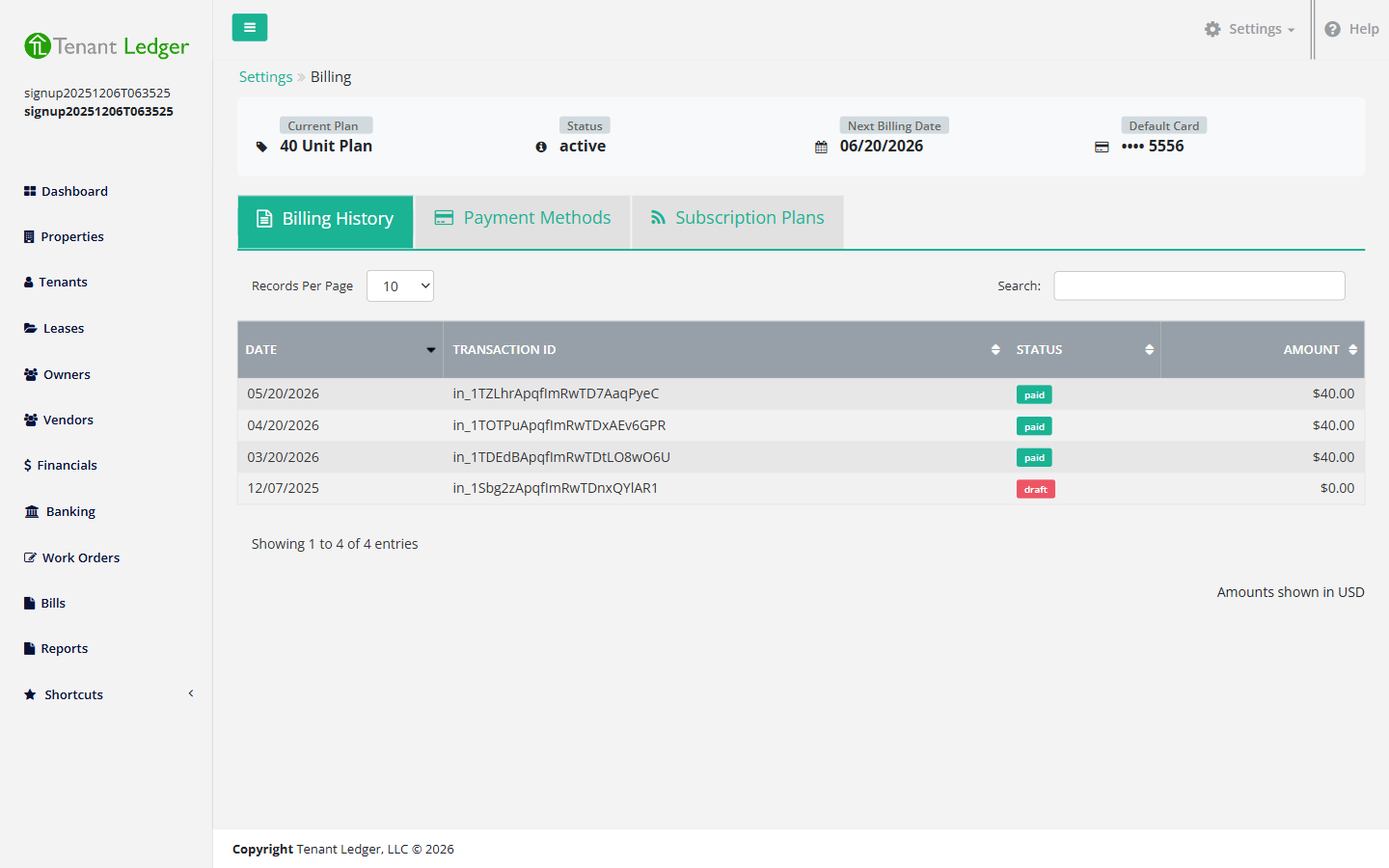
At the top, review your subscription summary: Current Plan, Status, Next Billing Date (or “Billing Starts” if you’re in a trial), and your Default Card.
Change your plan
- Open the Subscription Plans tab to see the available plans.
- On the plan you want, click Upgrade to move to a higher plan, or Downgrade to move to a lower one. Follow the prompts to confirm.
Add or update a payment card
- Open the Payment Methods tab.
- Click Add Card, enter your card details, and save. You can set a card as your default for future charges.
Cancel your subscription
- On the Subscription Plans tab, choose to cancel, then confirm in the Cancel Subscription pop-up by clicking Yes, Cancel Subscription.
- Your plan stays active until the end of the current billing period.
Reactivate a subscription
- If you previously scheduled a cancellation and change your mind, click Reactivate on the Subscription Plans tab to keep your current plan.
What you’ll see
After any change, the page reloads with an updated status and a confirmation message. You may be briefly signed out and back in so your new plan takes effect everywhere.
Tips
- Cancelling doesn’t cut you off immediately — you keep access until the period you’ve already paid for ends.
- Upgrades may include a prorated charge for the rest of the current billing period; the page shows this before you confirm.
- To see past invoices and receipts, use the Billing History tab — see View your billing and transaction history.
Related articles
Still stuck? Email support@tenantledger.com and a real person who knows the product will help.