
Edit a Chart of Accounts account
What this is
Editing an account lets you correct or update one of your income/expense categories — for example, renaming “Repairs” to “Maintenance & Repairs”, changing its type, moving it under a parent account, or updating its note. The change applies everywhere the account is used, so transactions already tagged with it follow the new name on your lists and reports.
When to use it: fix a typo, clarify a name, regroup an account under a parent, or update the note. You don’t need to edit an account just to keep using it.
Before you start
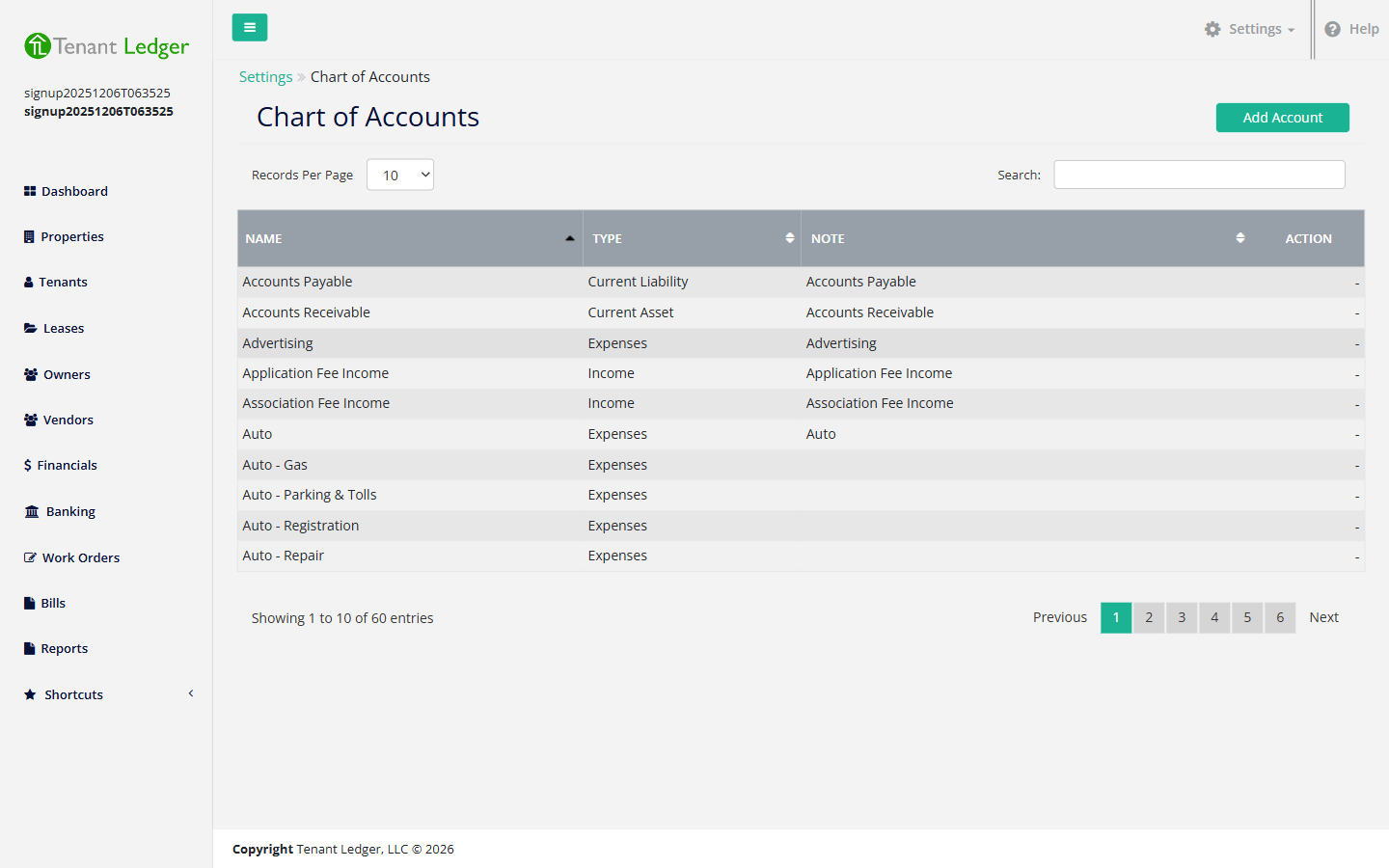
- Standard, built-in accounts (such as Rent Income and Prepaid Rent) are protected and can’t be edited. On the list, these show a dash (—) in the Action column instead of an Edit button.
Steps
-
In the top navigation bar, click the Settings menu (the gear icon, top right), then click Settings.
-
On the Settings page, click the Chart of Accounts tile.
-
Find the account you want to change in the list, then click the green Edit button on its row. (If you see a dash instead of buttons, that account is protected and can’t be edited.)
-
On the Edit Account page, update any of the fields. (For a full explanation of what each field means and how to choose, see Set up your Chart of Accounts.)
- Name — the account’s display name. Changing it updates the name shown on every charge, payment, and bill that already uses this account.
- Type — Income, Expenses, Current Asset (cash), Current Liability, or Equity.
- Sub Account — choose a parent account to nest this one under, or leave it blank to keep it a top-level account.
- Note — your internal description.
-
Click Save.
What you’ll see
You’re returned to the Chart of Accounts list, and the row reflects your changes right away. Any transactions already tagged with this account now show the updated name on your screens and reports.
Tips
- Renaming an account does not move or change the transactions tagged to it — they simply display the new name.
- If you want to retire an account you no longer use but it’s already attached to transactions, you generally can’t delete it. Consider renaming it (for example, adding “(old)”) so it’s clear it’s no longer in active use. See Delete a Chart of Accounts account for the deletion rules.
Related articles
Still stuck? Email support@tenantledger.com and a real person who knows the product will help.