
View your billing and transaction history
What this is
Your billing history is the record of invoices and charges for your Tenant Ledger subscription — what you’ve been billed for the software itself, and whether each charge went through. It lives on the same Billing & Subscriptions page as your plan. This is separate from your tenants’ rent payments, which live in the financial areas of the app.
When to use it: review past subscription invoices, confirm a charge was paid, or check on a failed payment before updating your card.
Before you start
- None.
Steps
-
In the top navigation bar, click the Settings menu (the gear icon, top right), then click Settings.
-
On the Settings page, click the Billing & Subscriptions tile.
-
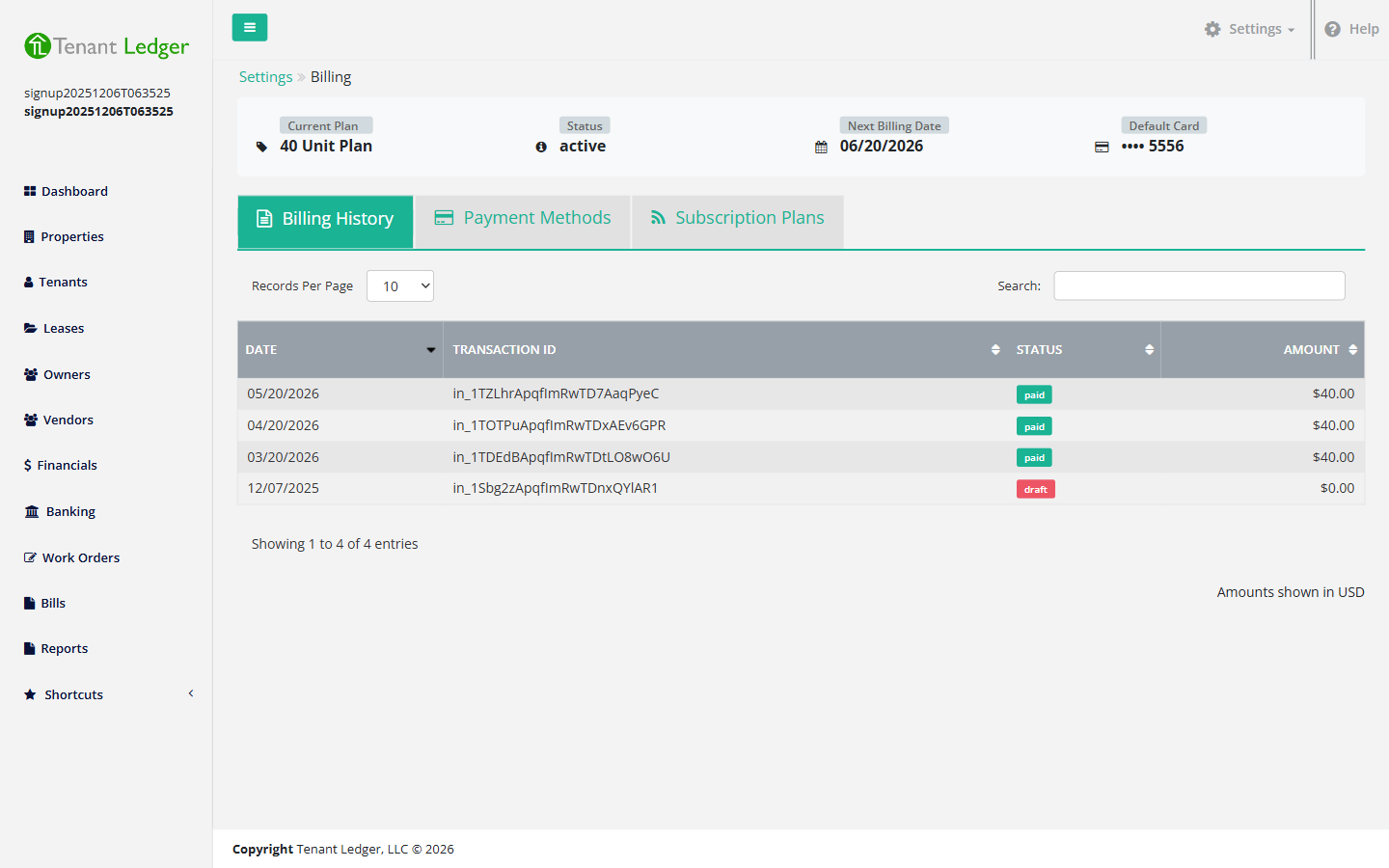
Open the Billing History tab.
-
Review the list of invoices. Each row shows the details and a Status (for example, “paid”) so you can confirm which charges went through.
-
To see the cards on file, open the Payment Methods tab.
What you’ll see
A table of your subscription invoices with dates, amounts, and status. Dates are shown in your account’s time zone.
Tips
- This page covers charges for your Tenant Ledger subscription. Rent payments and other tenant transactions are tracked separately in the financial areas of the app, not here.
- If an invoice shows an unpaid or failed status, check your card under Payment Methods and update it if needed — see View and manage your Subscription.
Related articles
Still stuck? Email support@tenantledger.com and a real person who knows the product will help.