
Delete a category
What this is
Deleting removes a work order category you no longer need. Deleting is a soft delete: the category is hidden from your list and from the work order dropdown, but existing history is preserved. To protect your records, the app blocks the delete if the category is still in use.
When to use it: clean up a category you created by mistake or no longer use for new work orders.
What blocks this delete
A category is blocked from deletion while it is being used by a work order. You must reassign or remove the work orders that use the category before you can delete it:
- Find the work orders that use this category (in your Work Orders area).
- Change each one to a different category, or delete the work orders you no longer need.
- Then delete the category.
When a category is still in use, the list shows its Delete option as one that opens a pop-up reading “This category is currently used in a work order and cannot be deleted.” In that case the delete simply won’t go through — the category stays in your list until you free it up by reassigning or removing the work orders that use it.
Steps
-
In the top navigation bar, click the Settings menu (the gear icon, top right), then click Settings.
-
On the Settings page, click the Category tile.
-
Find the category in the list, click the Action button on its row, then click Delete.
-
In the confirmation pop-up, confirm the category name and click DELETE.
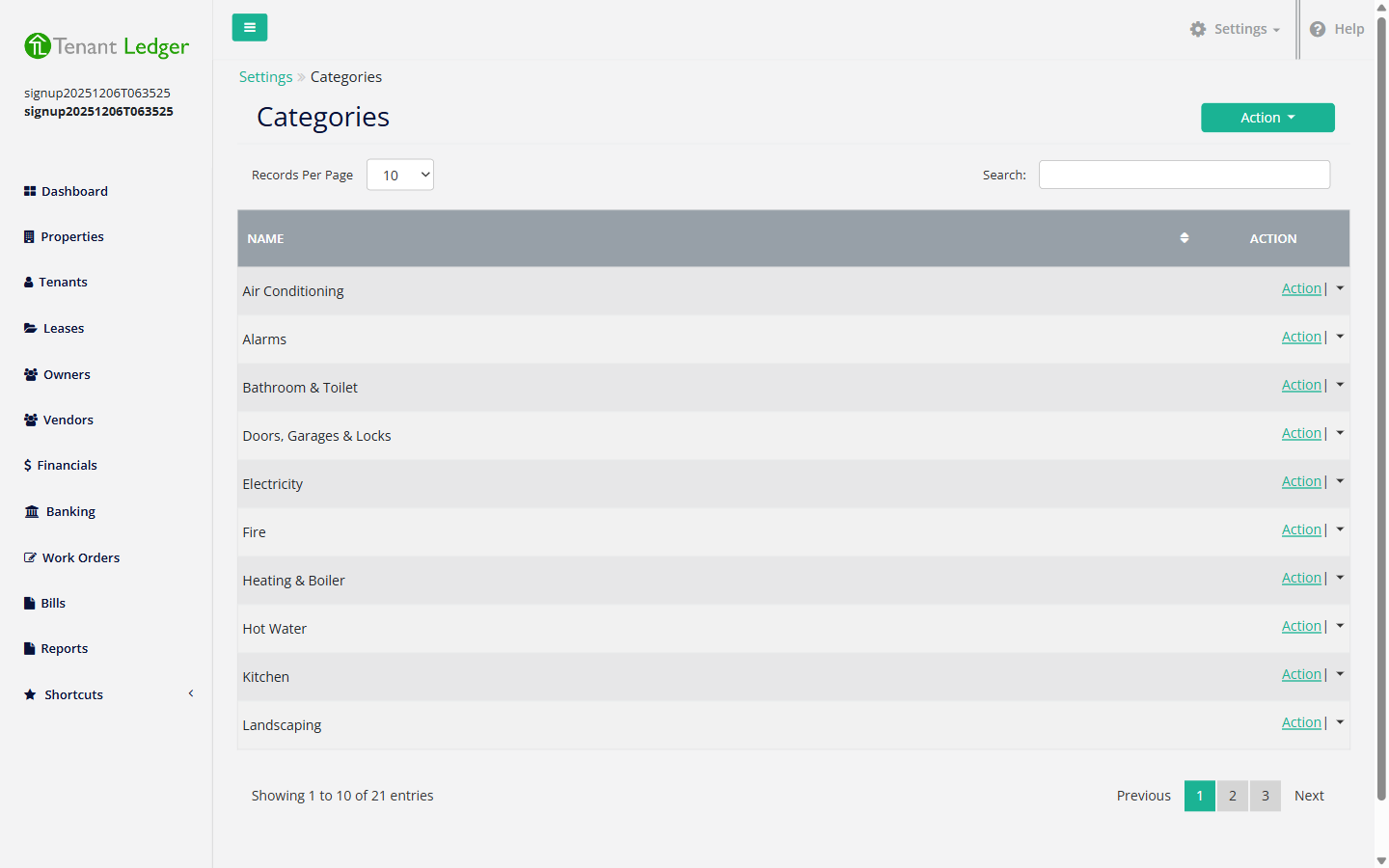
What you’ll see
- Success: the category disappears from your Categories list and is no longer offered when you create a work order.
- Blocked: the category is in use, so clicking Delete opens the “Cannot Delete Category” pop-up instead, and the category remains in the list. Reassign or remove the work orders using it, then try again.
Tips
- If you’re not sure which work orders are using a category, open your Work Orders list and filter or sort by category to find them.
- See Why can’t I delete this? if a delete isn’t going through.
Related articles
Still stuck? Email support@tenantledger.com and a real person who knows the product will help.