
Apply an existing credit to a charge
What applying a credit does
Once a tenant has a credit on their account, applying it puts some or all of that credit toward an open charge, reducing or clearing the charge’s balance — without recording any cash. It’s the second half of using a credit: issuing creates the balance, applying spends it.
Use this after you’ve issued a credit (see Issue a credit to a tenant) and the tenant has a charge you want to wipe down. You can apply a credit all at once or in parts across several charges, until the credit’s remaining balance reaches zero.
Before you start
- The tenant must have a credit with a remaining balance. See Issue a credit to a tenant.
- The tenant must have an open charge of the same type as the credit — only matching-type charges appear on the Apply Credit screen.
Steps
-
Open the Credit Summary for the credit you want to use. You can reach it from the lease’s Financials tab or by opening the credit from the tenant’s records.
-
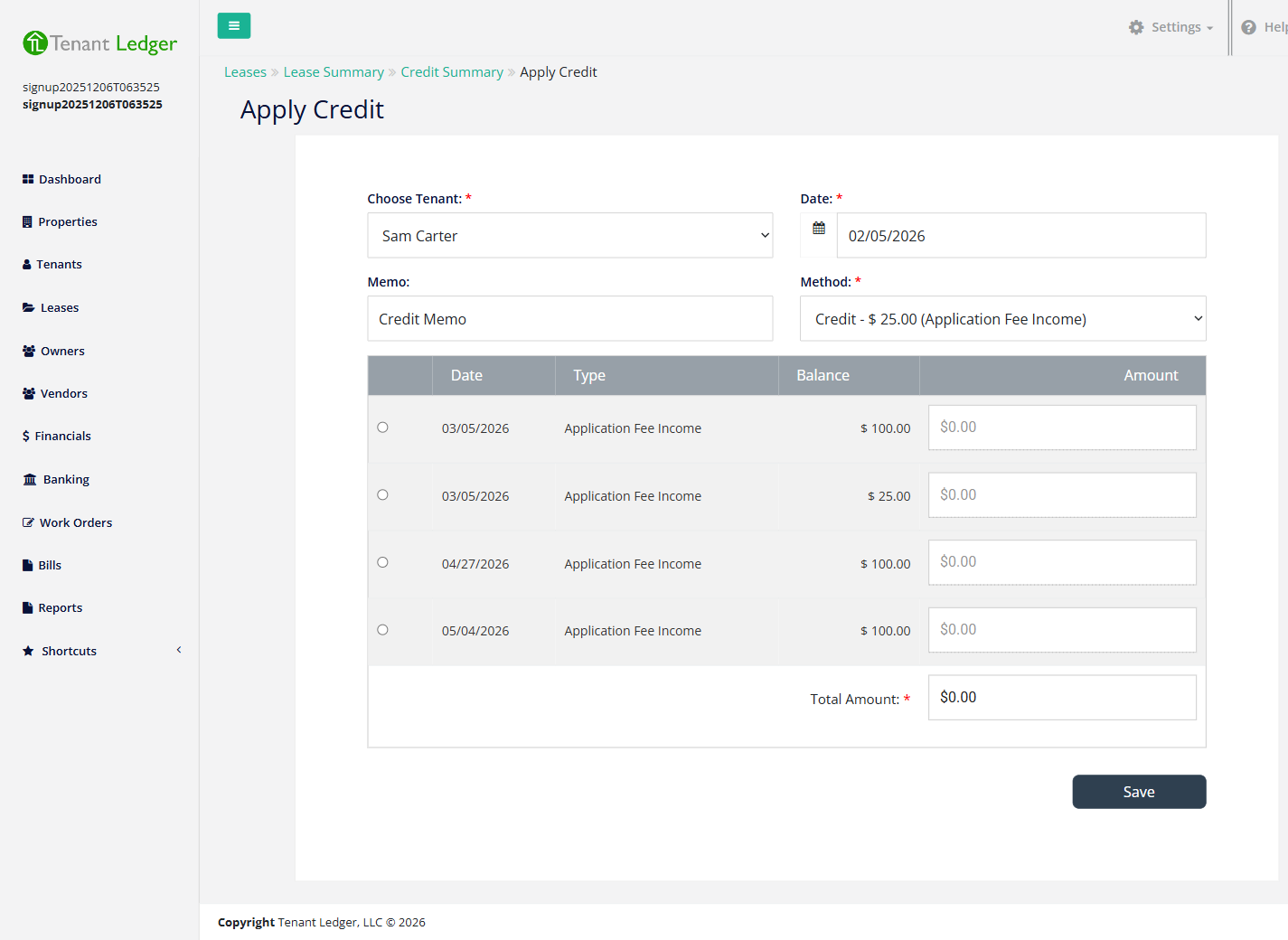
On the Credit Summary, choose Apply Credit to open the Apply Credit screen.
-
Confirm the Tenant, the Date, and the credit amount available (shown under Method).
-
In the table of eligible charges, select the charge you want to apply the credit to.
-
Enter the Amount of the credit to apply to that charge. It can’t exceed either the credit’s remaining balance or the charge’s own balance.
-
Make sure the Total Amount matches what you allocated.
-
Click Save.
What you’ll see
You return to the Credit Summary, which now shows the applied amount and the reduced remaining credit. The charge’s balance drops by the amount applied; if the credit fully covers it, the charge is marked paid.
How to remove an applied credit
If you applied a credit to the wrong charge, or you need to free up the charge so you can delete it, you can un-apply the credit:
- Open the Credit Summary.
- In the list of applied amounts, choose to delete the applied credit for the charge in question and confirm.
Removing the application restores the charge’s balance and returns that amount to the credit’s remaining balance. (This is also the first step before you can delete the credit entirely or delete the charge it was applied to.)
Tips
- Only charges matching the credit’s type appear in the list. If you don’t see the charge you expect, check that its charge type matches the credit type.
- You can apply a credit in parts across multiple sessions until the remaining balance reaches zero.
Related articles
Still stuck? Email support@tenantledger.com and a real person who knows the product will help.