
Handle a partial payment
What a partial payment is
When a tenant pays less than the full amount of a charge, you record what they actually paid and the charge keeps the unpaid balance owing. The charge stays open, and the remaining balance shows up on the tenant’s ledger so you can collect the rest later.
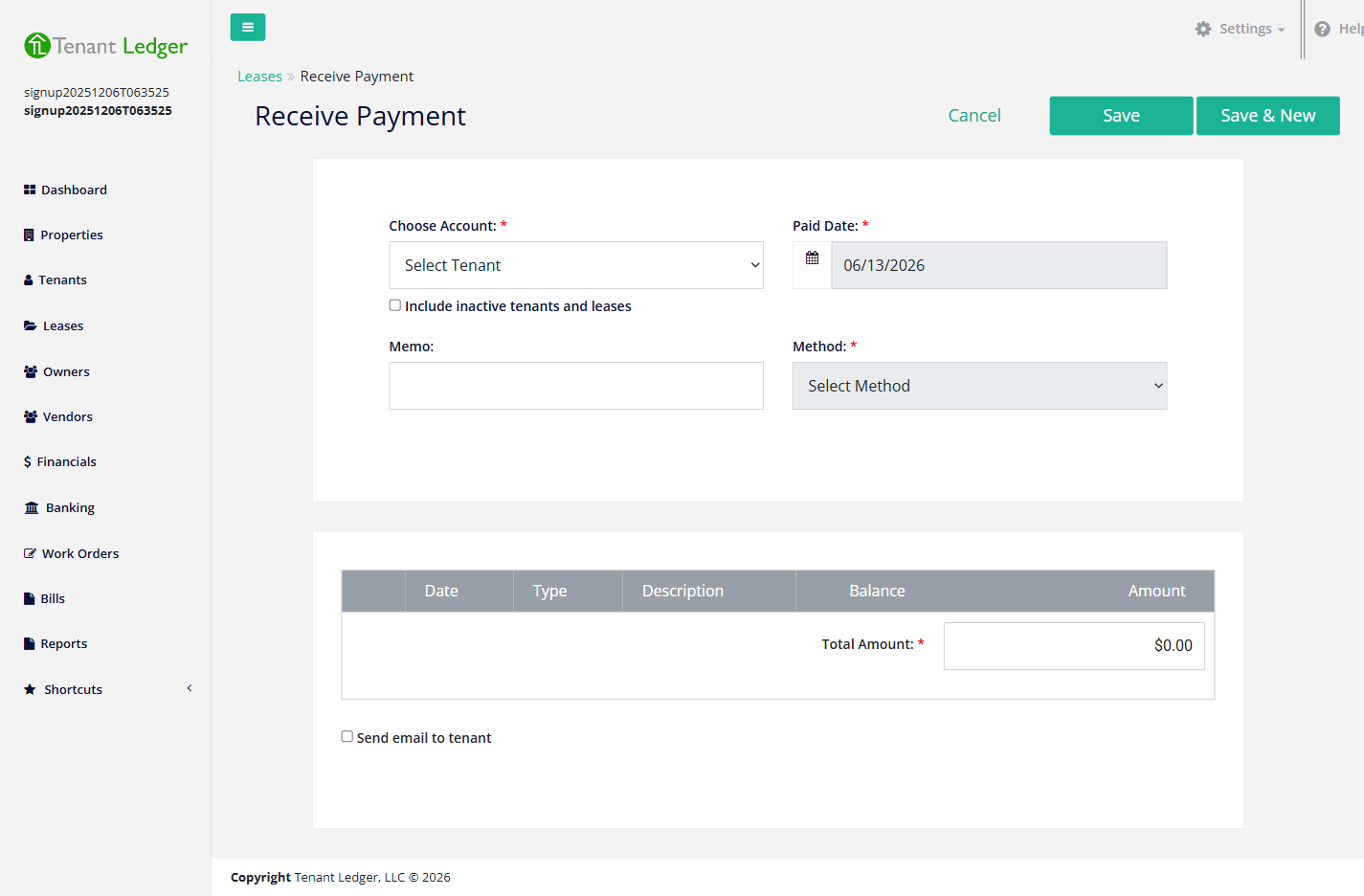
There’s no special mode for this — the regular Receive Payment screen handles partial amounts. You just enter the amount the tenant paid instead of the full balance.
Before you start
- The tenant must have an open charge with a balance.
Steps
-
Open the Receive Payment screen (left sidebar → Shortcuts → Receive Payment, or the Action menu on the Lease Summary).
-
In Choose Account, select the tenant. Their open charges appear in the table.
-
Confirm the Paid Date and choose the Method (and a Bank Account or Check # if required).
-
In the charges table, check the box next to the charge.
-
In the Amount box for that charge, enter the partial amount the tenant paid — less than the charge’s balance.
-
Set the Total Amount to equal what you allocated (the partial amount).
-
(Optional) Check Send email to tenant to email a receipt.
-
Click Save.
What you’ll see
On the Payment Summary, the charge shows the partial payment applied. The charge stays open (not marked paid) and its remaining balance is still owed. You’ll see that remaining balance on the Lease Summary and the Charge Summary.
Tips
- You can collect the rest later by recording another payment against the same charge — repeat the steps and apply the remaining amount.
- The amount you enter can’t be larger than the charge’s balance. To bill an additional amount beyond the original charge, add a new charge instead. See Add a one-time charge to a tenant.
- A partial payment and a full payment use the same screen — the only difference is the amount you enter.
Related articles
Still stuck? Email support@tenantledger.com and a real person who knows the product will help.