
Receive a rent payment
What receiving a payment does
Receiving a payment records money a tenant has paid and applies it to one or more of their open charges. It clears (or reduces) the charge balance, records how the tenant paid, and — if you deposit to a bank account — sets the money up to be reconciled later.
Use this whenever a tenant pays you, whether it’s rent, a fee, or a deposit charge. You choose the tenant, the date, the payment method, and exactly which charges the money covers and how much goes to each. One payment can cover a single charge or be split across several.
Before you start
- The tenant must have at least one open (unpaid) charge to apply the payment to. See Add a one-time charge to a tenant.
Steps
-
Open the Receive Payment screen in one of these ways:
- In the left sidebar, open the Shortcuts group and click Receive Payment, or
- On a Lease Summary page, click the Action menu and choose Receive Payment, or
- On the Leases list, click the Receive Payment button in the top-right corner.
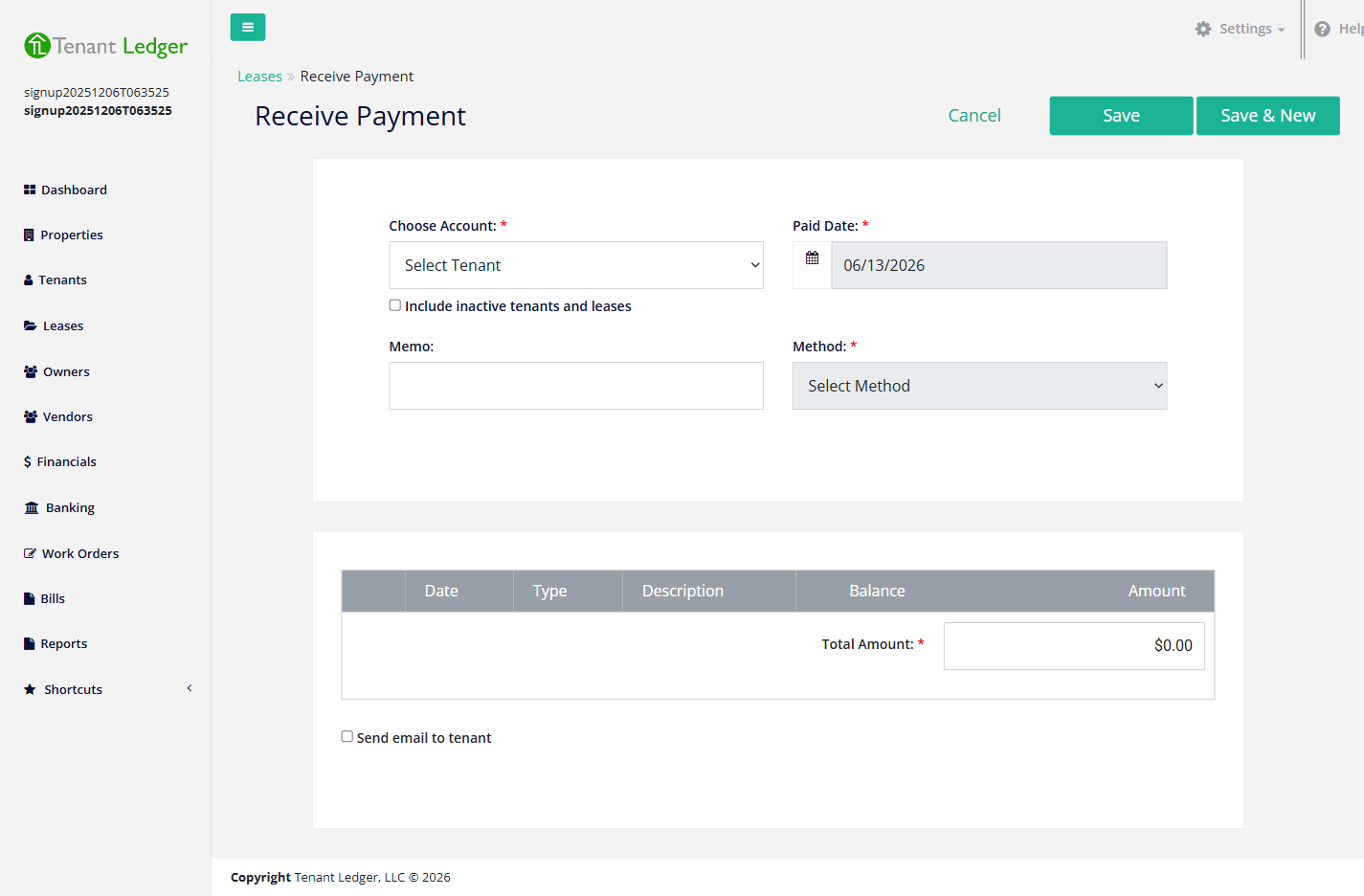
-
In Choose Account, select the tenant. Their open charges load in the table below. (If you opened this from a specific lease or tenant, it’s already filtered for you.)
-
Confirm the Paid Date — the date the tenant actually paid.
-
(Optional) Enter a Memo — a note that stays on the payment record (for example “rent for May”).
-
Choose the Method and fill in the matching details:
- Pick Check, Cash, Direct Deposit, or another method.
- For a method that deposits to a bank, also choose the Bank Account the money lands in.
- For a check, enter the Check #.
-
In the table of open charges, check the box next to each charge you’re collecting and enter the Amount being paid toward it. The amount you put on any one charge can’t be more than that charge’s remaining balance.
-
Set the Total Amount so it equals the sum of the amounts you allocated across the charges. The two must match exactly — no leftover and no overage.
-
(Optional) Check Send email to tenant to email them a receipt.
-
Click Save. To record another payment right after, click Save & New.
What you’ll see
After saving, you land on the Payment Summary page showing the payment, its method, and the charges it was applied to. Each charge it fully covered is marked paid; partially covered charges keep their remaining balance. The lease balance updates to match.
Tips
- The amount you apply to a single charge cannot exceed that charge’s remaining balance.
- If the Total Amount doesn’t equal the allocated amounts, the form won’t save — line up the totals first.
- A lease-level (shared) charge has no single tenant — it’s owed by the lease as a group. You can still collect against it; choose the tenant who is paying and apply the amount to the shared charge.
- If a tenant pays less than the full balance, see Handle a partial payment.
- If one payment covers several charges at once, see Receive a payment across multiple charges.
- Made a mistake on a saved payment? You can edit or delete it — but a payment that has already been deposited is locked until you remove the deposit first.
Related articles
Still stuck? Email support@tenantledger.com and a real person who knows the product will help.