
Set up recurring charges on a lease (automate rent)
What a recurring charge is
A recurring charge automatically bills a tenant on a schedule — weekly, monthly, quarterly, or yearly — so you never have to type in rent (or another regular charge) by hand each period. You set up the schedule once, and TenantLedger generates the actual charge on each due date for you.
Use a recurring charge for anything that repeats: rent, a monthly parking fee, a pet rent, or a recurring utility allocation. For a one-off amount that doesn’t repeat, use a manual charge instead (see Add a one-time charge to a tenant).
A recurring charge is a template — it’s the instruction to bill, not the charges themselves. The charges it produces are normal charges with their own balances, payments, and delete rules.
Before you start
- Create the lease first. See Create a lease.
There are two ways to set up recurring charges: while creating the lease, or from the Lease Summary page afterward.
Option A: While creating the lease
- On the Add Lease form, check the Recurring Rent Charges box.
- Set the Start Date (when billing begins), the End Date, and the Frequency (None, Weekly, Monthly, Quarterly, or Yearly).
- Finish and Save the lease. The recurring rent charge is created using the Rent Amount you entered on the lease.
Option B: From the Lease Summary page
-
In the left sidebar, click Leases, then open the lease you want.
-
On the Lease Summary page, click the Financials tab.
-
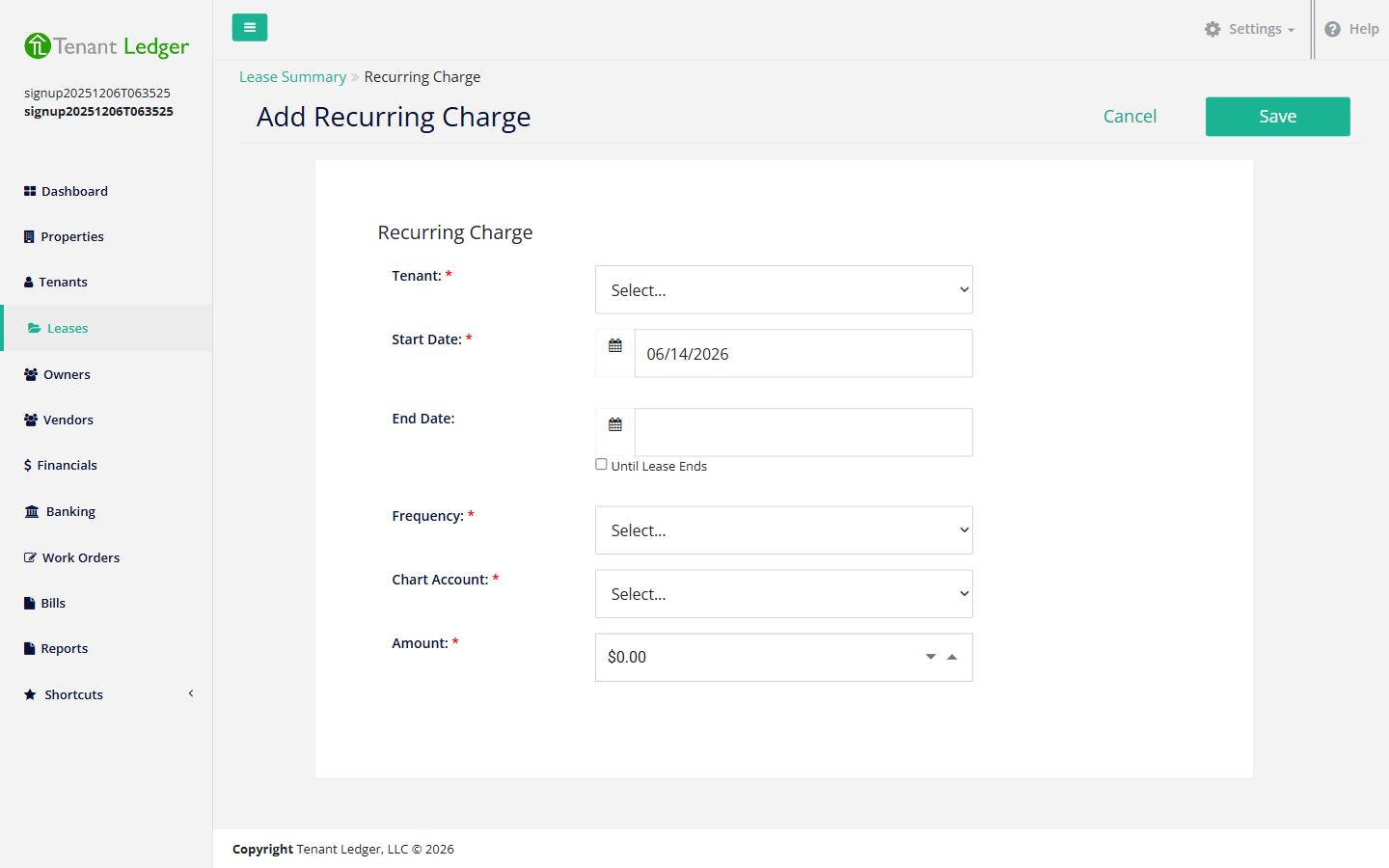
Click Add Recurring Charge.
-
Choose the Tenant the charge is billed to. (To bill the lease as a whole, choose the shared/lease-level option if available — a lease-level recurring charge is owed by everyone on the lease as a group.)
-
Set the Start Date — the first date a charge should be generated. For the End Date, either pick a date or check Until Lease Ends to keep billing for the life of the lease.
-
Choose the Frequency — how often the charge repeats (Weekly, Monthly, Quarterly, or Yearly).
-
Choose the Chart Account that categorizes the charge (for example, Rent Income). This controls where the generated charges land on your reports.
-
Enter the Amount to bill each period.
-
Click Save.
What you’ll see
The new recurring charge appears in the Recurring Charges section on the Financials tab of the Lease Summary, showing its frequency, dates, and amount. From the next scheduled date onward, TenantLedger generates the actual charges automatically — you’ll see them appear under the lease’s charges as each due date arrives.
Tips
- Pick the Chart Account carefully — it determines how the generated charges are categorized in your reports.
- If you check Until Lease Ends, you don’t need to enter an End Date.
- Setting up the recurring charge doesn’t create a charge for a date that has already passed — it generates going forward from the schedule.
- To change the amount, schedule, or stop future billing, see Edit a recurring charge and Delete a recurring charge.
- For a documented rent change with a history, use Record a rent increase and then update the recurring amount.
Related articles
Still stuck? Email support@tenantledger.com and a real person who knows the product will help.