
Edit a payment
When to edit a payment
Editing a payment lets you correct a payment you’ve already recorded — for example fixing the paid date, the method, the check number, the memo, or how the payment is split across the tenant’s charges. Use this when the money came in correctly but a detail was entered wrong, or you need to move some of the payment from one charge to another.
You reach the edit form from the payment’s summary as Edit Transaction.
Before you start
- The payment must already exist.
- A payment that has been deposited is locked. To edit it, you’d first remove the deposit (see Delete a payment for how the deposit chain works). If you only need to change which charges it covers, it’s often simpler to delete and re-enter the payment.
Steps
-
Open the Payment Summary for the payment. You can reach it from the lease’s Financials tab (under payments, click View) or from the tenant’s records.
-
On the Payment Summary page, click the Action menu and choose Edit Transaction.
-
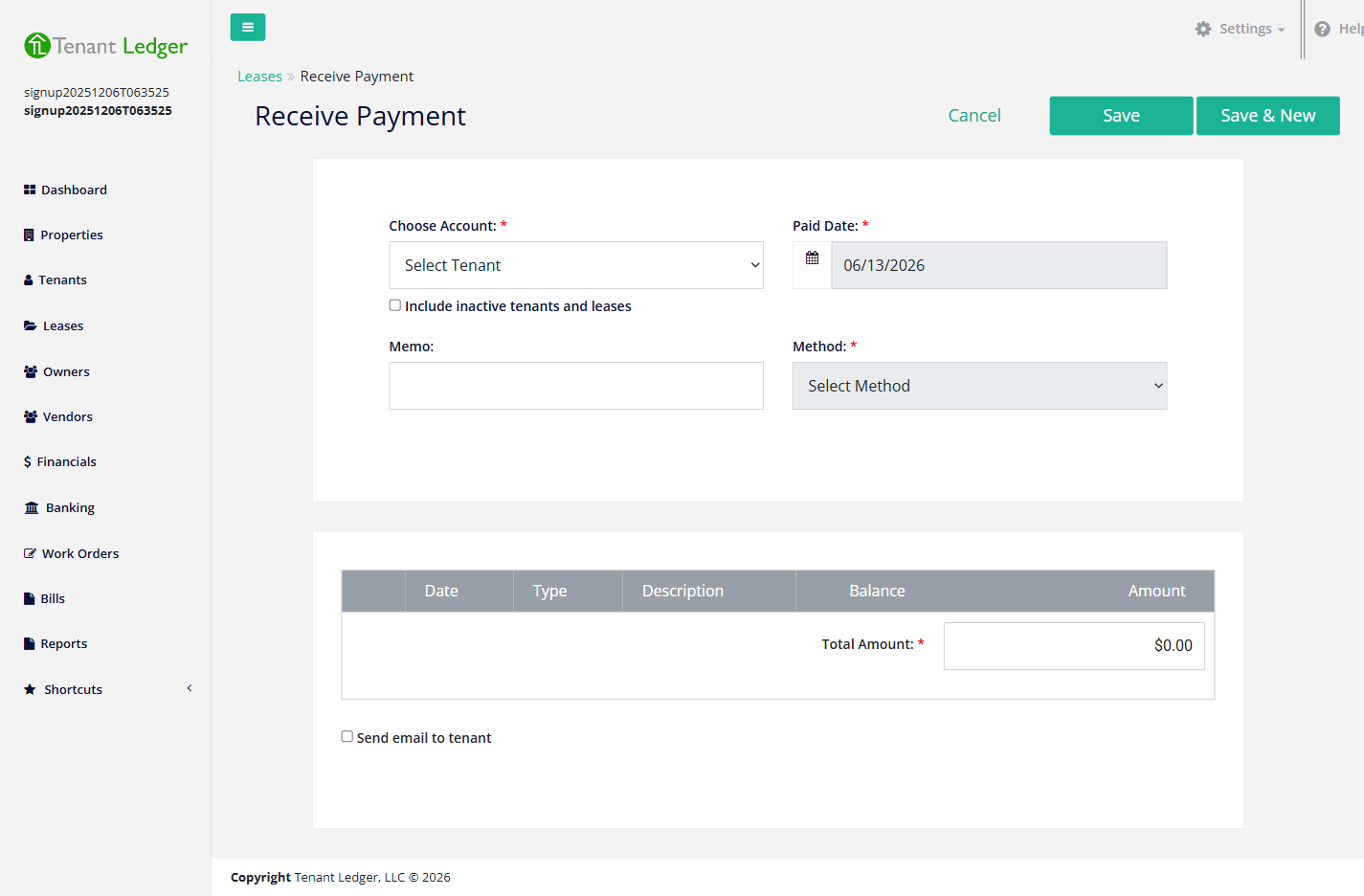
On the edit form, update what you need:
- Paid Date, Method, Check #, and Memo — the payment’s details.
- The amounts applied to each charge — change how much of the payment goes to each open charge.
-
Make sure the Total Amount still equals the sum of the amounts allocated to the charges — the two must match, just like when you first received the payment.
-
Click Save.
What you’ll see
After saving, you return to the Payment Summary with the updated details. Any charges affected by a re-allocation update their paid status and balance.
Tips
- The amount on any single charge still can’t exceed that charge’s remaining balance.
- If you can’t open Edit Transaction (the menu shows a “Cannot Delete Payment” style warning), the payment has been deposited or refunded. Clear the deposit first, or delete and re-enter. See Delete a payment.
Related articles
Still stuck? Email support@tenantledger.com and a real person who knows the product will help.