
Edit a lease
When to edit a lease
Editing a lease lets you correct or update its core terms after it’s been created — for example fixing a typo in the dates, changing the lease type from Fixed to At Will, updating the rent amount, or switching the payment responsibility. Use this when the lease itself is right but a detail needs to change.
A few things are managed from their own screens rather than the edit form: adding or removing tenants is done with Move In Tenant / Move Out Tenant, recording a rent increase is done with Increase Rent, and recurring charges are managed on the Financials tab. See the related articles below.
Before you start
- The lease must already exist. See Create a lease.
Steps
-
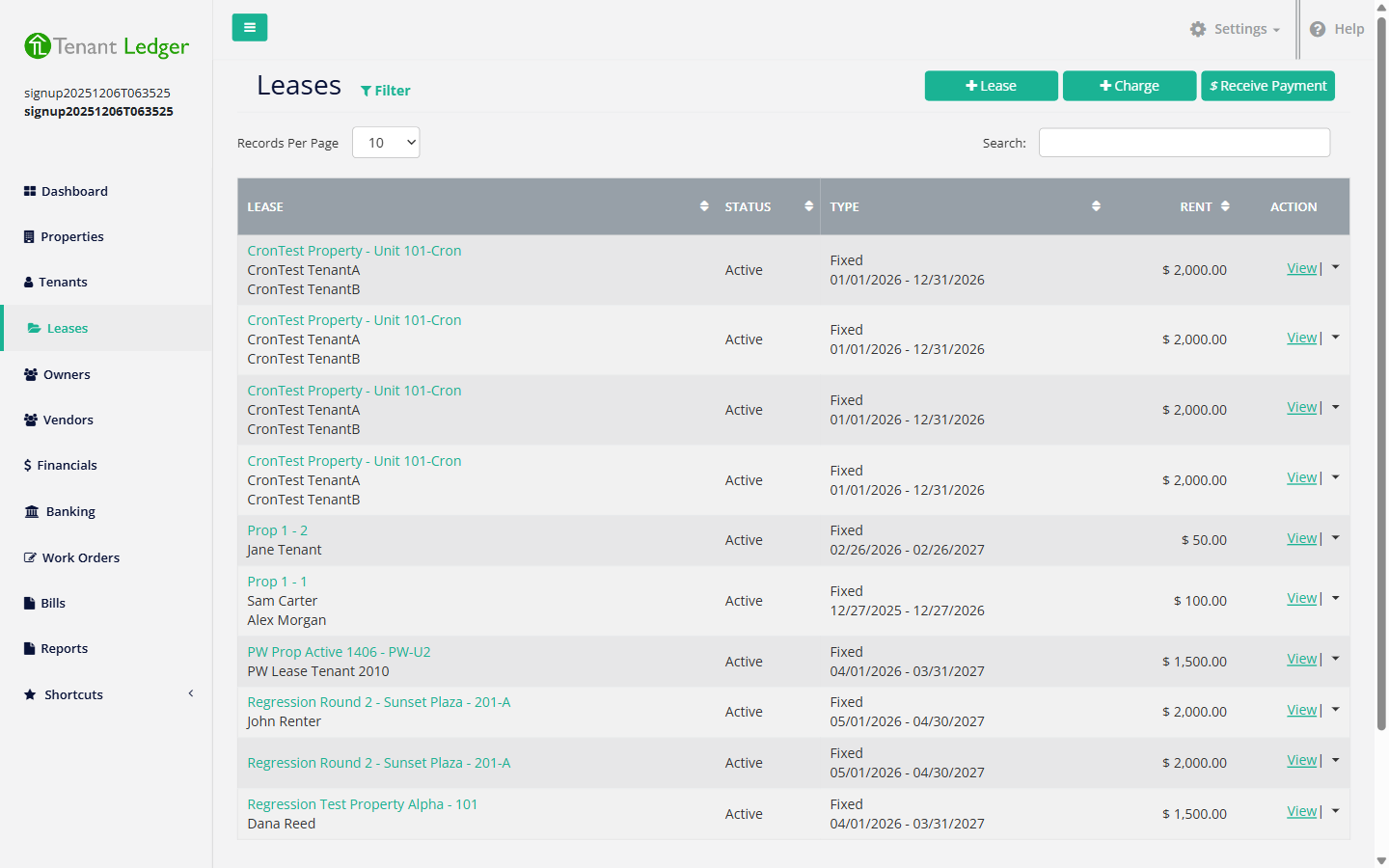
In the left sidebar, click Leases, then click View on the lease you want to change.
-
On the Lease Summary page, click the Action menu (top-right) and choose Edit Lease.
-
On the Edit Lease form, update the fields you need:
- Lease Status, Lease Type, Lease Start Date, and Lease End Date — the term and state of the lease.
- Automatically End Lease — whether the lease ends on its own at the end date.
- Payment Responsibility and Rent Amount — who owes the rent and how much.
-
Click Save in the top-right corner.
What you’ll see
After saving, you return to the Lease Summary page and the updated details are shown. The change is reflected in the Leases list as well.
Tips
- The End Date must be after the Start Date, or the form shows a validation error and won’t save.
- Changing the Rent Amount here updates the lease’s stated rent. If the lease bills rent automatically, also update the recurring charge so future charges use the new amount. See Edit a recurring charge. To keep a documented history of rent changes, use Record a rent increase instead.
- To add or remove tenants, use Move a tenant in or Move a tenant out and end a lease — not the edit form.
Related articles
Still stuck? Email support@tenantledger.com and a real person who knows the product will help.