
Record a rent increase
What a rent increase is
Recording a rent increase logs the new rent amount and the date it takes effect, building a dated history of rent changes on the lease. It’s the documented record of “rent went from this to that on this date,” which is useful for the tenant statement, your own records, and proving notice.
Recording the increase is a history entry — on its own it does not change how the lease bills going forward. If the lease bills rent automatically, you also update the recurring charge so future charges use the new amount (see the tip below).
Before you start
- The lease must already exist. See Create a lease.
Steps
-
In the left sidebar, click Leases, then open the lease you want to update.
-
On the Lease Summary page, click the Action menu (top-right) and choose Increase Rent.
You can also open the Financials tab and click Add Increase.
-
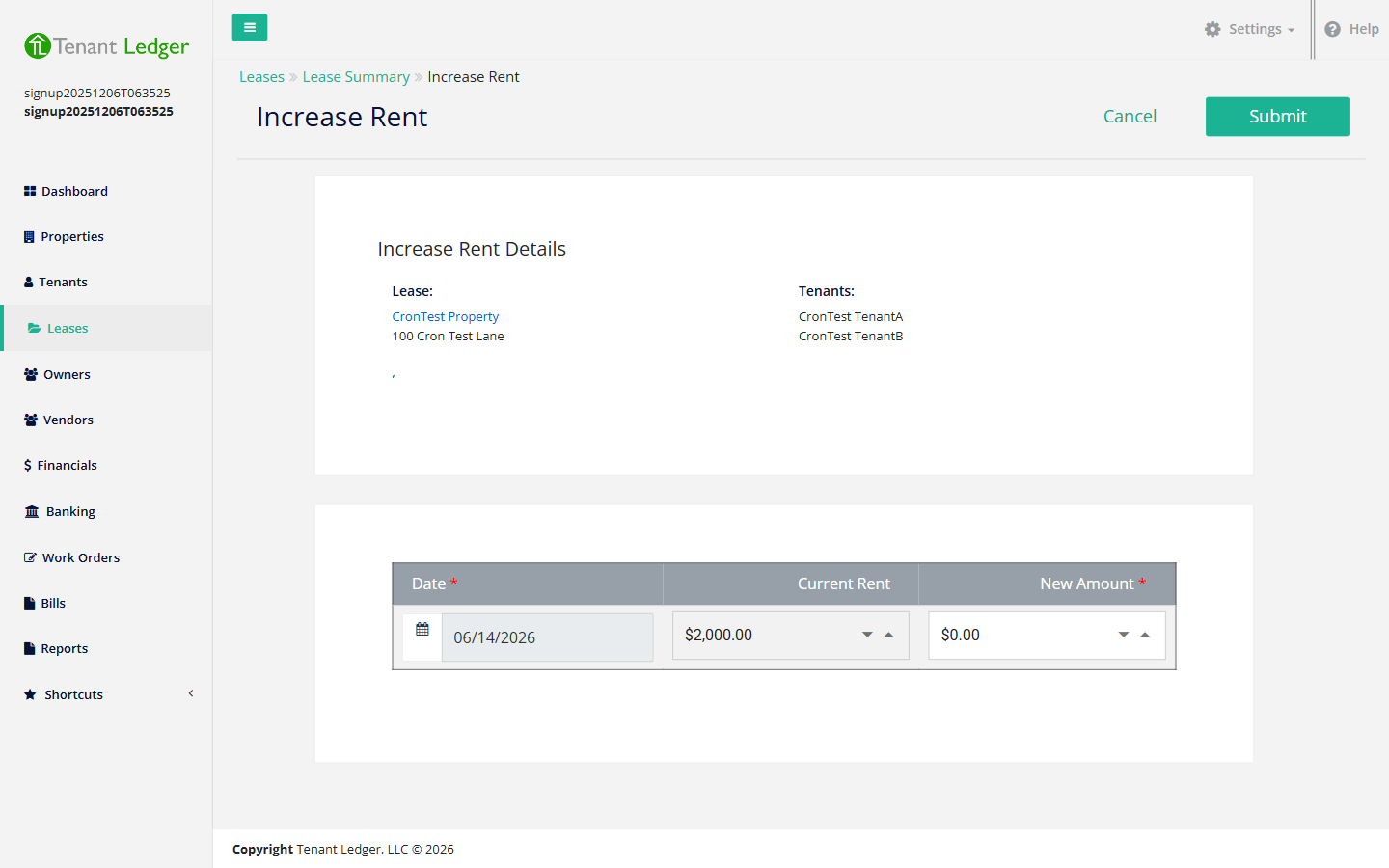
On the Increase Rent form, confirm the property and tenants shown at the top.
-
The Current Rent is filled in for you. Enter the New Amount — the rent going forward.
-
Set the effective Date for the increase — the date the new rent applies from.
-
Click Submit.
What you’ll see
You return to the Lease Summary page. The rent increase appears in the lease’s Rent Increase history on the Financials tab, showing the date, the old amount, and the new amount.
Tips
- Recording a rent increase logs the change for your records. If the lease bills rent automatically, also update the recurring charge amount so future generated charges use the new rent. See Edit a recurring charge.
- Entered an increase by mistake? You can remove it. See Delete a rent increase.
Related articles
Still stuck? Email support@tenantledger.com and a real person who knows the product will help.