
Create a deposit batch (group payments to match a bank deposit)
When you record a tenant payment, an owner contribution, or a miscellaneous income item, it sits as “undeposited funds” until you group it into a deposit. A deposit batch combines several of these items into one deposit total that matches the single lump-sum deposit shown on your bank statement.
When to use it: create a deposit batch whenever you take money to the bank. If you walked five rent checks in as one deposit, group those five payments into one batch so the TenantLedger deposit matches the one line on your statement — which keeps your monthly reconciliation clean and quick.
Before you start
- You need a bank account set up. See Add a bank account.
- You need at least one undeposited item: a recorded tenant payment, an owner contribution, or a miscellaneous transaction that hasn’t been deposited yet. (Items recorded as Direct Deposit are deposited automatically and won’t appear in the list.)
Steps
-
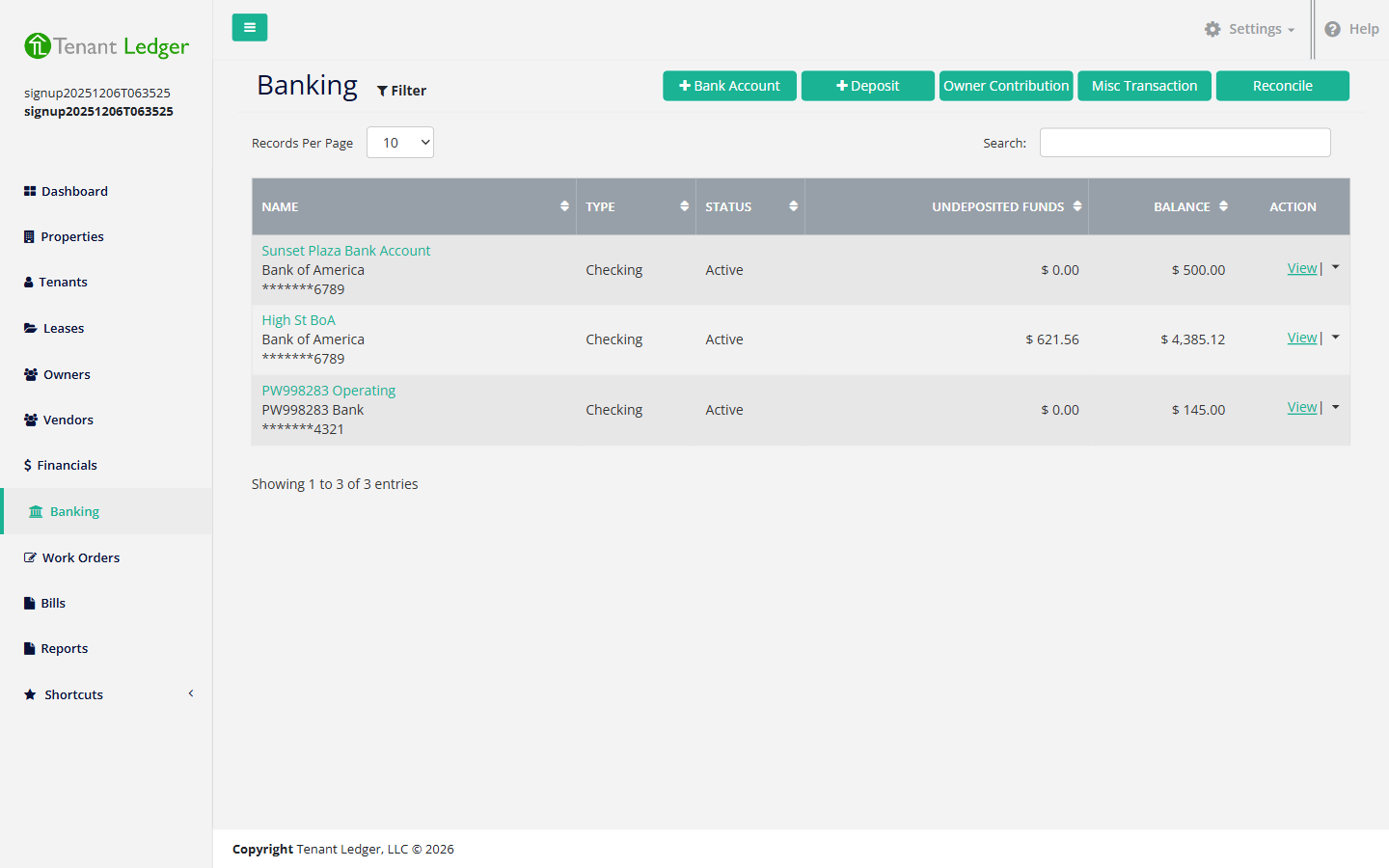
In the left sidebar, click Banking.
-
Click the + Deposit button near the top right of the Banking page. The Add Deposit screen opens.
-
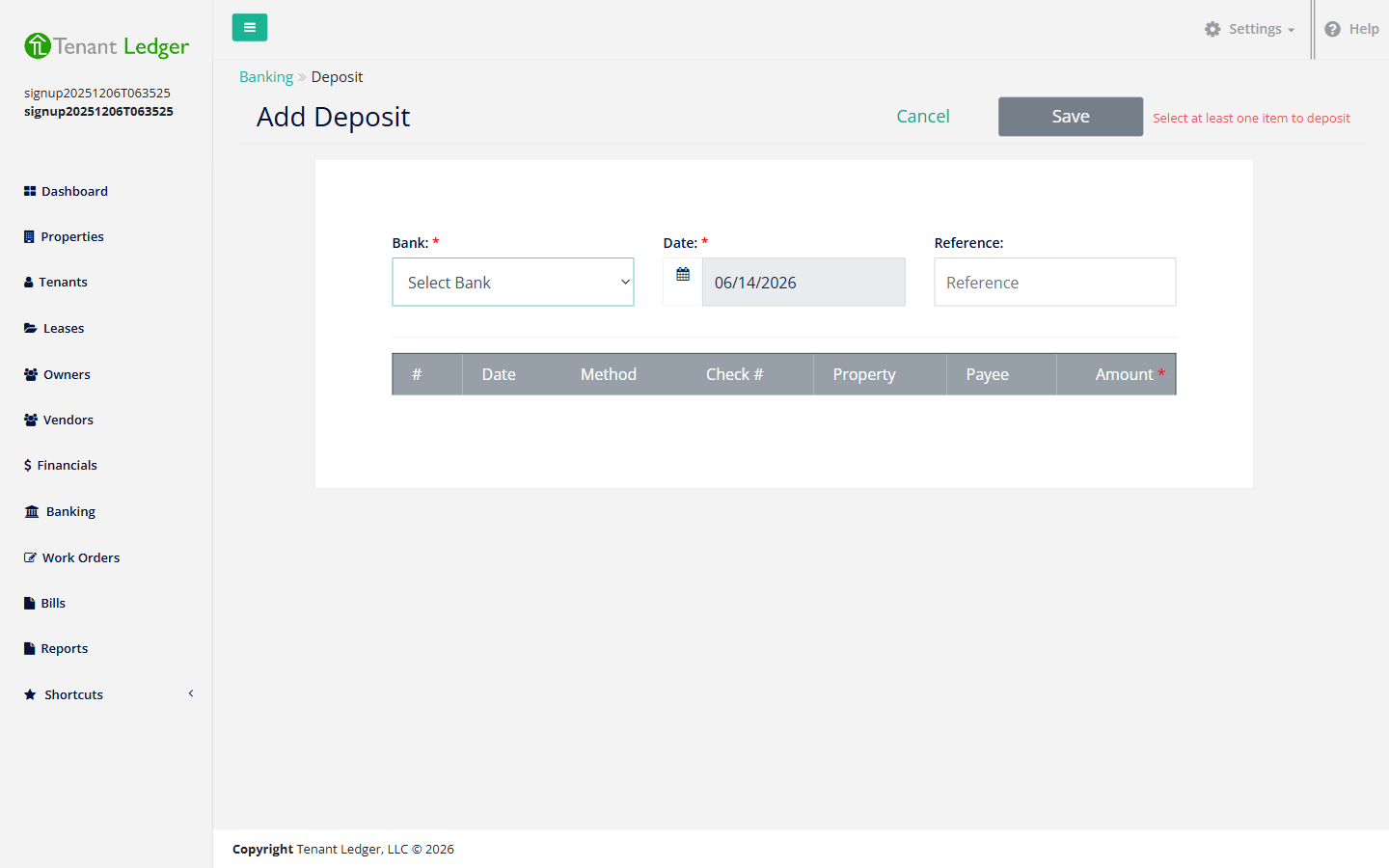
Choose the Bank the deposit is going into (required). The list of undeposited items below is filtered to that account.
-
Confirm the Date of the deposit (defaults to today) and add an optional Reference (for example a deposit slip number).
-
In the table below, check the box next to each payment you want to include in this deposit. The table shows each item’s date, payer, property, method, and amount so you can match them to your deposit slip. As you select items, the Total at the bottom updates to show the combined deposit amount.
-
Click Save.
What you’ll see
You land on the deposit’s Summary page showing the bank, deposit date, reference, and the list of payments included in the batch. The deposit total is added to the bank account’s running balance, and those payments are no longer counted as undeposited funds. From the Summary you can edit the deposit, delete it, or reverse an individual payment in it.
Tips
- Group payments so each TenantLedger deposit matches one line on your bank statement.
- Only items that haven’t already been deposited appear in the list. If a payment is missing, confirm it was recorded and not already part of another deposit.
- You can edit a deposit later to add or remove payments — as long as it hasn’t been included in a completed reconciliation. See Delete a deposit for how a reconciled deposit is protected.
Related articles
Still stuck? Email support@tenantledger.com and a real person who knows the product will help.