
Edit a bank account
Editing a bank account lets you correct or update its details — for example fixing a typo in the account number, adding check-printing settings you skipped when you first set it up, changing the next check number, or marking an account inactive once you’ve closed it in real life.
When to use it: any time the account’s information changes, or when you want to turn check printing on for an account, or when you want to hide an account you no longer use without erasing its history.
Before you start
- The bank account must already exist. See Add a bank account.
- Editing the Start Amount or Bank Start Date affects the account’s running balance and your reconciliation. Only change these if you’re correcting the original setup, not to “fix” a balance that’s off for another reason.
Steps
-
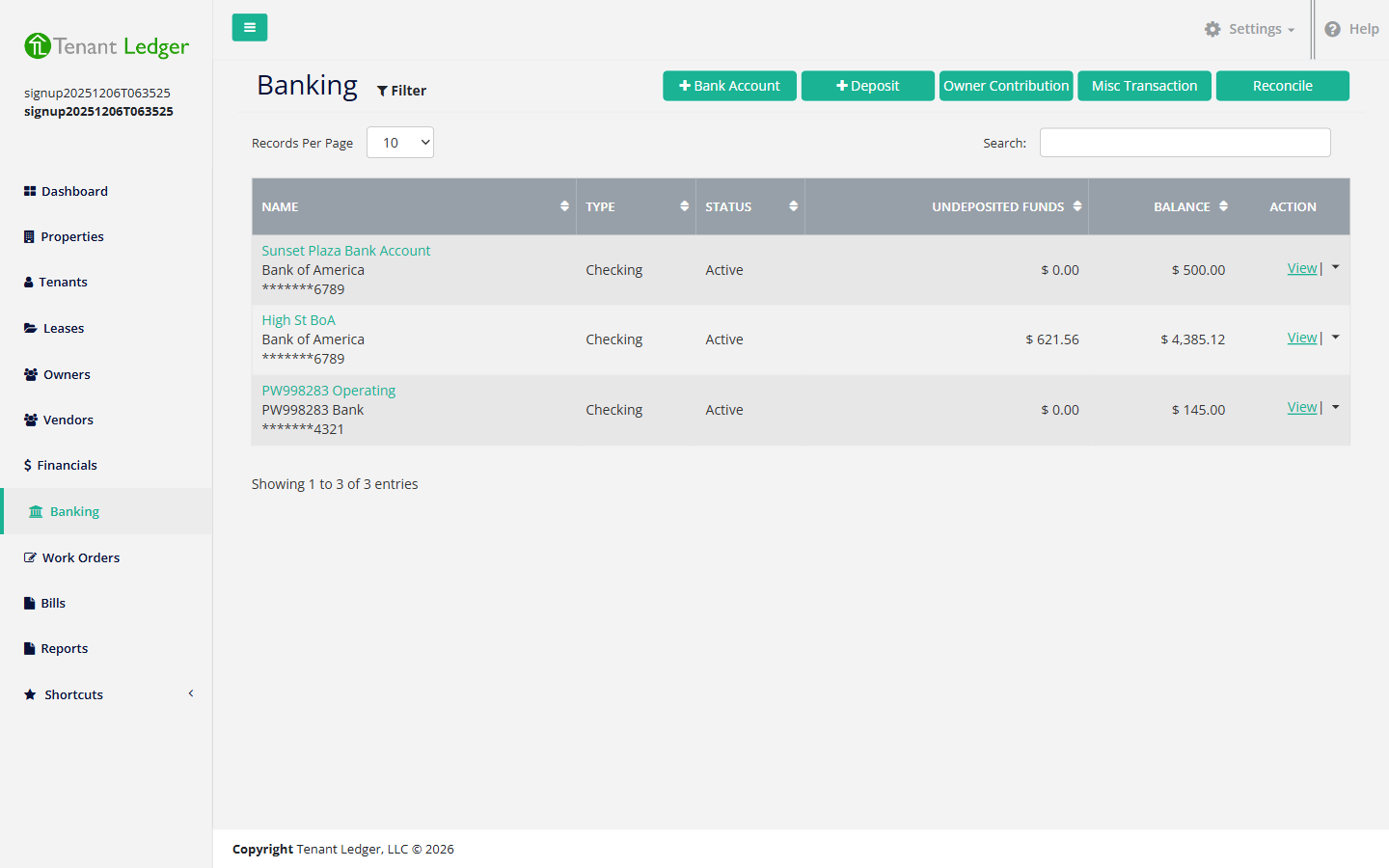
In the left sidebar, click Banking.
-
Click the account to open its Summary page.
-
Open the Action menu (top right) and choose Edit Account. The edit screen opens with the current values filled in.
-
Change any of the fields:
- Bank Details — Bank Name, Account Name, address fields, Account #, Routing #, Bank Type, Next Check Number, Start Amount, Bank Start Date.
- Status — switch between Active and Inactive. Setting it to Inactive hides the account from the default Banking list and from the dropdowns where you choose an account, but keeps all of its history.
- Check Details — Check Fractional #, Override Company Info on Check, Check Layout, and Check Stock Style. To turn on check printing for an account, set Check Layout to a value other than None.
-
Click Save.
What you’ll see
You return to the account’s Summary page with your changes applied. If you changed the Next Check Number, the next check you print will use that number. If you set the account to Inactive, it drops off the default Banking list (you can still find it by changing the status filter on the Banking page).
Tips
- To start printing checks from an account you set up without check details, edit it and choose a Check Layout other than None, then make sure the account number, routing number, and fractional number are filled in. See Print a check.
- Marking an account Inactive is the right move when you close a real account — it’s reversible and preserves the audit trail, unlike deleting. See Delete a bank account for when a delete is and isn’t allowed.
Related articles
Still stuck? Email support@tenantledger.com and a real person who knows the product will help.