
Update or complete a work order
As a maintenance job progresses, you’ll want to update the work order’s details, log notes about what’s happening, attach the property’s assets, and finally mark it complete once the job is done. This article covers all three.
When to use it: edit a work order when its details change (new schedule, assigned vendor, status); add notes to keep a running history; complete it when the work is finished so it drops off your open list with a completion date on record.
Before you start
- The work order must already exist. See Create a work order.
Steps
Update a work order
- In the left sidebar, click Work Orders and open the work order you want to change.
- In the Action menu on the Summary page, click Edit.
- Change any details — property, unit, priority, scheduled date and time, assignment, vendor, category, status, short description, and full description.
- Click Save.
Add a note
- Open the work order’s Summary page.
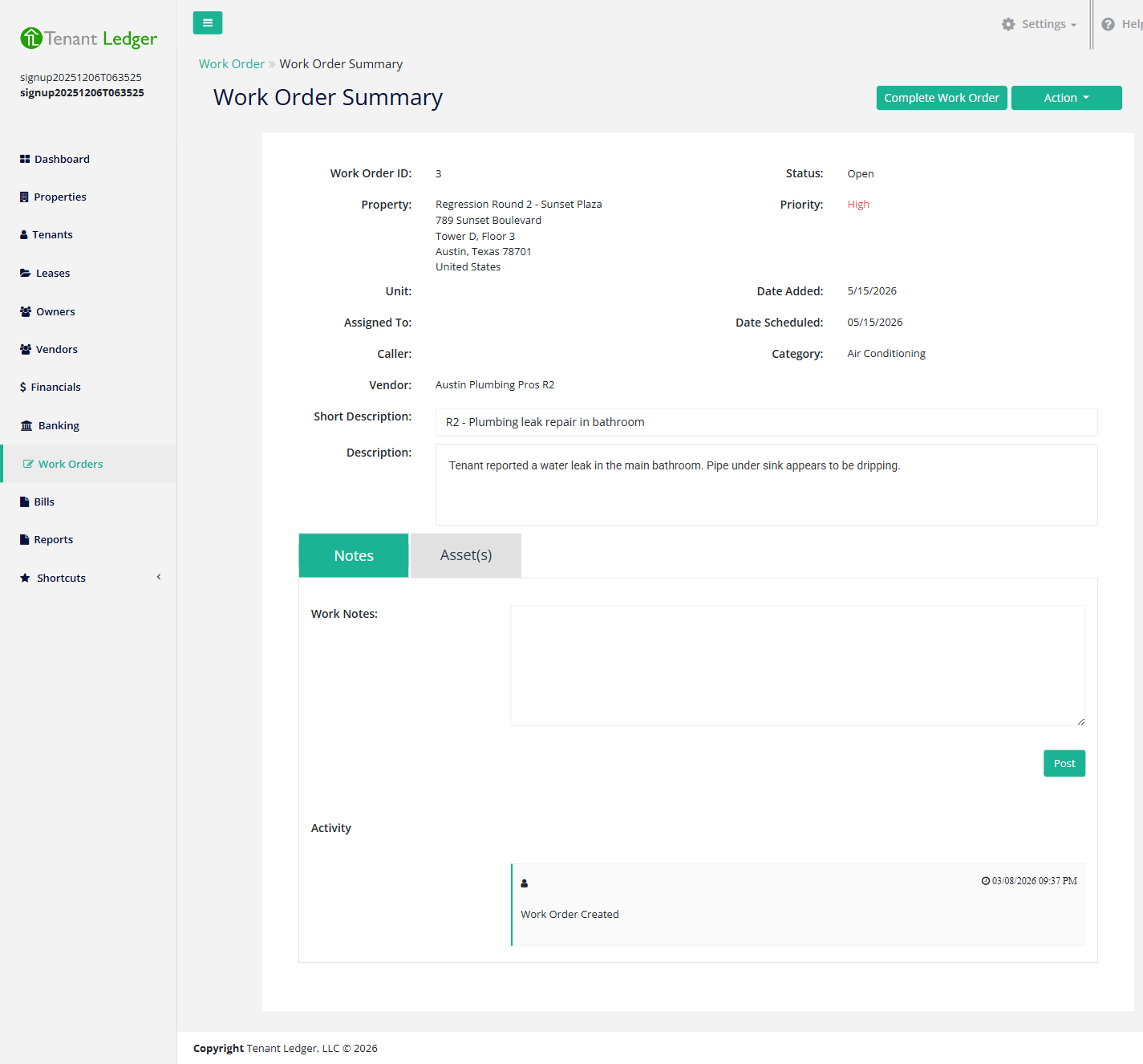
- In the notes area, type your note and click Post. The note is saved to the work order’s history with the date and who added it. Use notes to log progress, vendor updates, or tenant communication.
Attach an asset (optional)
- On the work order’s Summary page, use the Assign asset option to link one of the property’s tracked assets (for example a specific furnace or appliance) to the job.
- To detach an asset later, use Remove on that asset’s row. (Linked assets must be removed before the work order can be deleted — see the note under Tips.)
Complete a work order
-
Open the work order’s Summary page and click Complete Work Order.
-
On the Complete Work Order screen, review the work order details, then enter:
- Completed Date (required) — the date the work was finished (defaults to today).
- Completed Notes — a summary of what was done.
-
Click Save.
What you’ll see
After saving, you return to the work order’s Summary. A completed work order shows as Completed with the completion date and your completed notes recorded. Edits and notes appear on the Summary immediately.
Tips
- Use notes to log progress, vendor updates, or tenant communication so the full history stays on the work order.
- Completing a work order, rather than deleting it, keeps your maintenance history intact. If you do need to remove one, note that a work order with a linked bill or linked assets is blocked from deletion until those are removed first. See Delete a work order.
Related articles
Still stuck? Email support@tenantledger.com and a real person who knows the product will help.