
Reconcile a bank account (monthly reconciliation)
Reconciling matches the transactions in TenantLedger against your monthly bank statement. You check off the deposits and payments that have actually cleared the bank, and confirm that your books agree with the statement’s ending balance. A clean reconciliation each month is your assurance that nothing is missing, duplicated, or miskeyed.
When to use it: once per statement period (usually monthly) for each active bank account, when your statement arrives.
Before you start
- Have your bank statement for the period in front of you, including its ending balance and statement ending date.
- Make sure your deposits and bill payments for the period are recorded. See Create a deposit batch and Pay a bill.
- Record any statement-only items (bank interest, service fees) first, so they’re available to clear. See Record a miscellaneous transaction.
Steps
-
In the left sidebar, click Banking, then click the Reconcile button near the top right. (You can also open a bank account and start a reconciliation from its Action menu.)
-
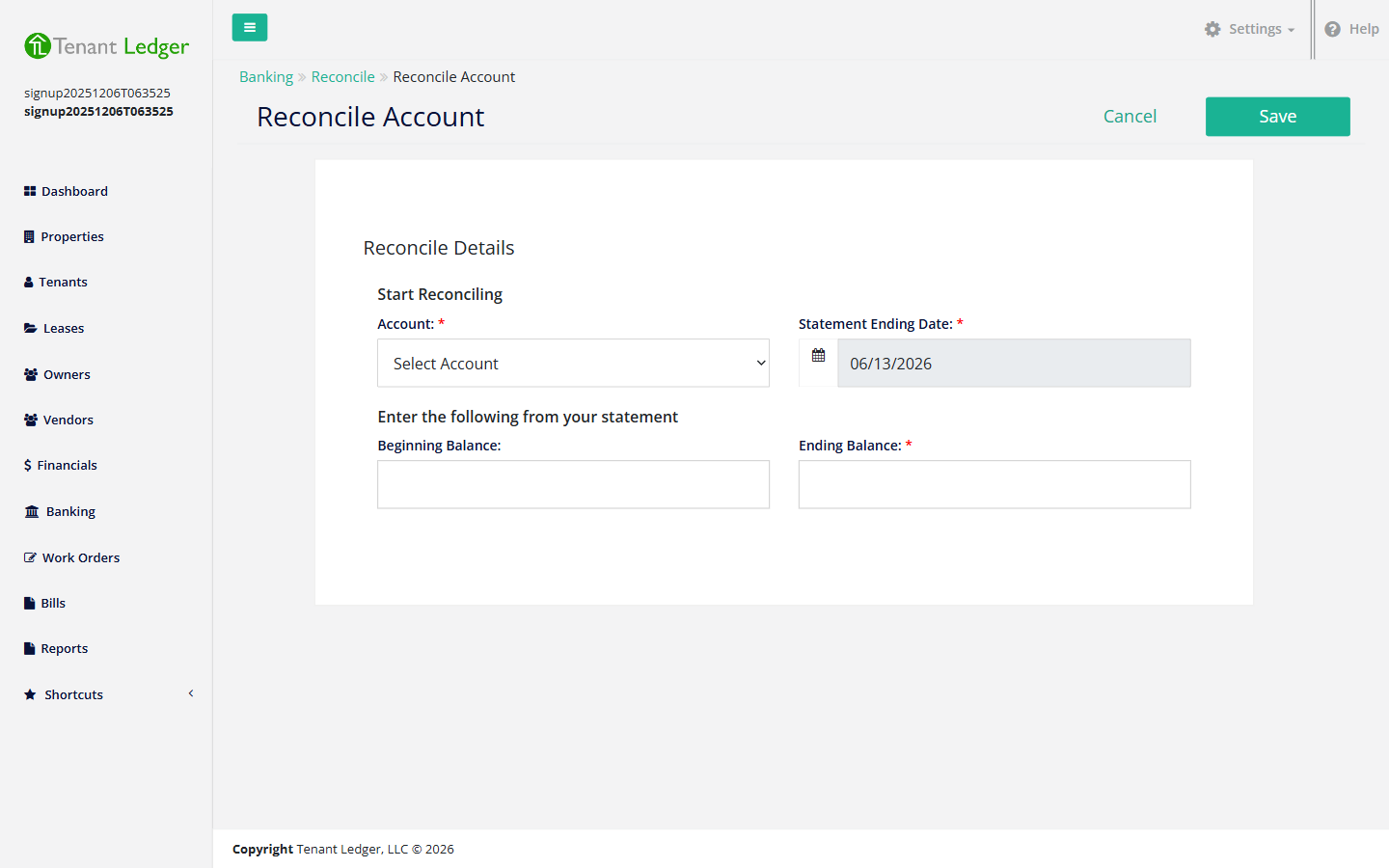
On the Reconcile Account start screen, choose:
- Account (required) — the bank account you’re reconciling.
- Statement Ending Date (required) — the closing date on your bank statement.
- Beginning Balance — fills in automatically from your last reconciliation (or the account’s start amount the first time). It should match your statement’s opening balance.
- Ending Balance (required) — the ending balance from your bank statement.
-
Click Save to move to the reconciliation worksheet.
-
On the worksheet, check the box next to every deposit and every payment (cleared check) that appears on your bank statement. Leave anything that hasn’t cleared the bank unchecked.
-
Watch the Difference at the top as you go. Each item you check moves it toward zero. When everything that cleared is checked off, the Difference should be 0.00.
-
When the difference is zero, save the reconciliation.
What you’ll see
You land on the Reconcile Summary, listing the cleared checks and cleared deposits for the period along with the beginning and ending balances. Anything you left unchecked is tracked as an uncleared (outstanding) item and shows up again the next time you reconcile. From the Summary’s Action menu you can print the report, edit the reconciliation, or delete it.
Tips
- A non-zero Difference means something doesn’t match. Common causes: a transaction recorded in TenantLedger but not yet on the statement (leave it unchecked), a bank fee or interest not yet entered, or a typo in the Ending Balance.
- For bank fees, interest, or other items on your statement but not yet in TenantLedger, record them as a miscellaneous transaction first. See Record a miscellaneous transaction.
- If you discover a mistake later, you can edit a saved reconciliation to clear or un-clear items, or remove the reconciliation entirely. See Undo or delete a reconciliation.
Related articles
Still stuck? Email support@tenantledger.com and a real person who knows the product will help.