
Create a work order
A work order tracks a maintenance or repair task at a property — a leaking faucet, a broken appliance, a turnover cleaning. You can assign it to a staff member or a vendor, set a priority, schedule it, and record who reported it. As the job progresses you can add notes, attach the property’s assets, and mark it complete.
When to use it: create a work order whenever a maintenance task comes up that you want to track, schedule, or hand off to a vendor or staff member.
Before you start
- You need at least one property. Units, vendors, staff users, tenants (as the caller), and categories are optional and let you add more detail.
Steps
-
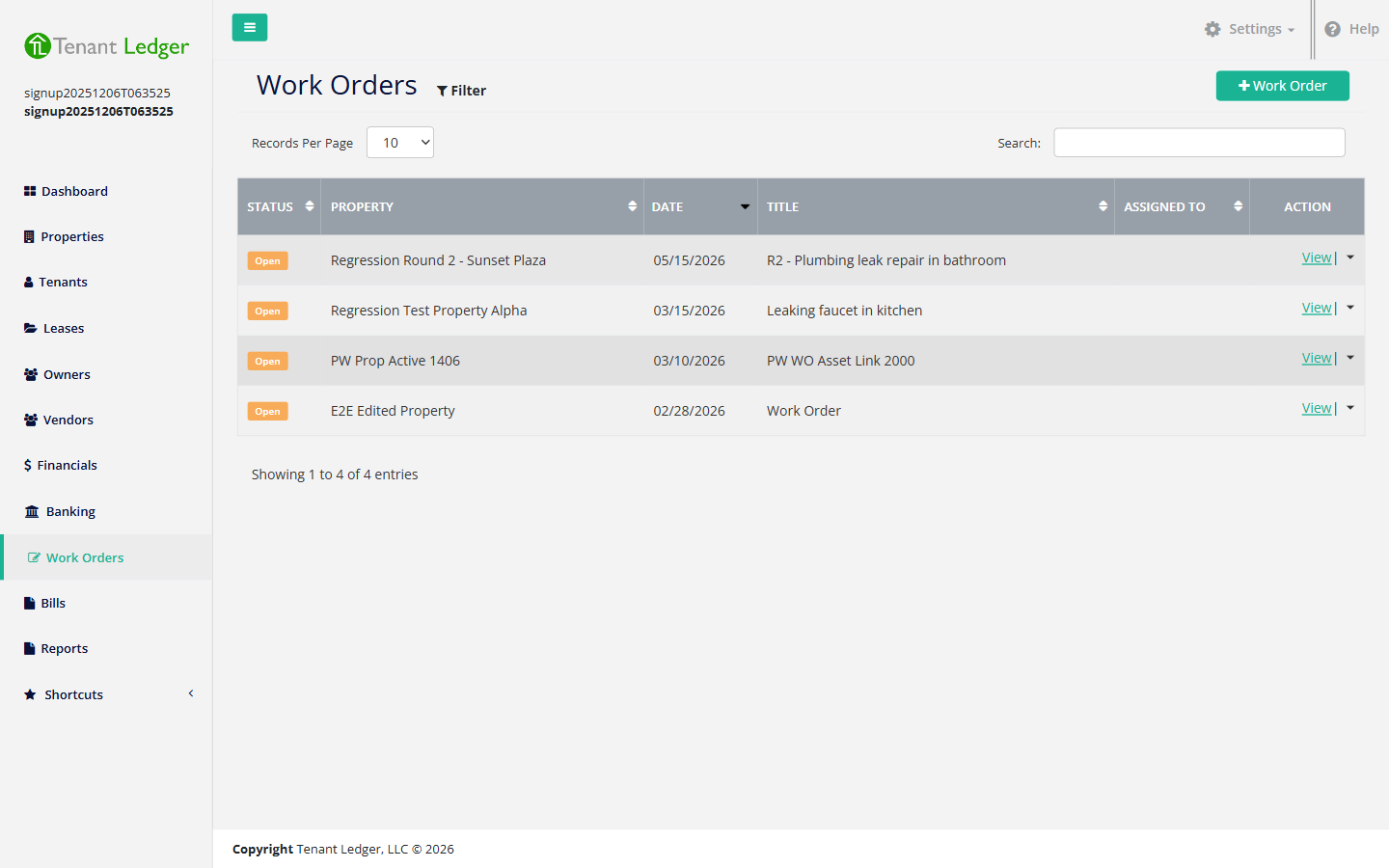
In the left sidebar, click Work Orders.
-
Click the add-work-order button to open the Add Work Order screen.
-
Fill in the Work Order Details:
- Property (required) — where the work is needed.
- Priority (required) — High, Medium, or Low. This drives how the job stands out on your Work Orders list.
- Unit — the specific unit, if applicable (the unit list loads once you pick a property).
- Scheduled Date (required) — when the work is planned (defaults to today).
- Assigned To — the staff member responsible.
- Scheduled Time — the time of the visit.
- Caller — the tenant who reported the issue (keeps a record of who requested the work).
- Category — the type of work (for example “Plumbing” or “Electrical”).
- Vendor — the vendor who will do the work.
- Status — starts as Open.
-
Enter a Short Description (required) — a brief title for the work order.
-
Add a longer Description with the full details of what needs to be done.
-
Click Save.
What you’ll see
You land on the new work order’s Summary page showing all the details, with a Complete Work Order button and an Action menu (for editing or deleting). The work order also appears on the Work Orders list with its status and priority.
Tips
- Use Priority so the most urgent jobs stand out on your Work Orders list.
- Setting the Caller to the tenant who reported the issue keeps a record of who requested the work.
- After creating the work order, you can update it, add notes, attach assets, or mark it complete. See Update or complete a work order.
Related articles
Still stuck? Email support@tenantledger.com and a real person who knows the product will help.