
Pay a bill
Paying a bill records a payment against it, marks it paid (or partially paid), and reflects the money leaving the bank account you pay from. You can pay by check, cash, or EFT, make a full or partial payment, and optionally have the app generate a printable check.
When to use it: when you’re ready to pay one specific bill. To pay several bills for a property in one pass, use Pay multiple bills at once instead.
Before you start
- The bill must already be entered. See Add a bill.
- You need a bank account to pay from. See Add a bank account.
- To print a check, the bank account must have check printing set up (a Check Layout other than None, plus account/routing/fractional numbers). See Print a check.
Steps
-
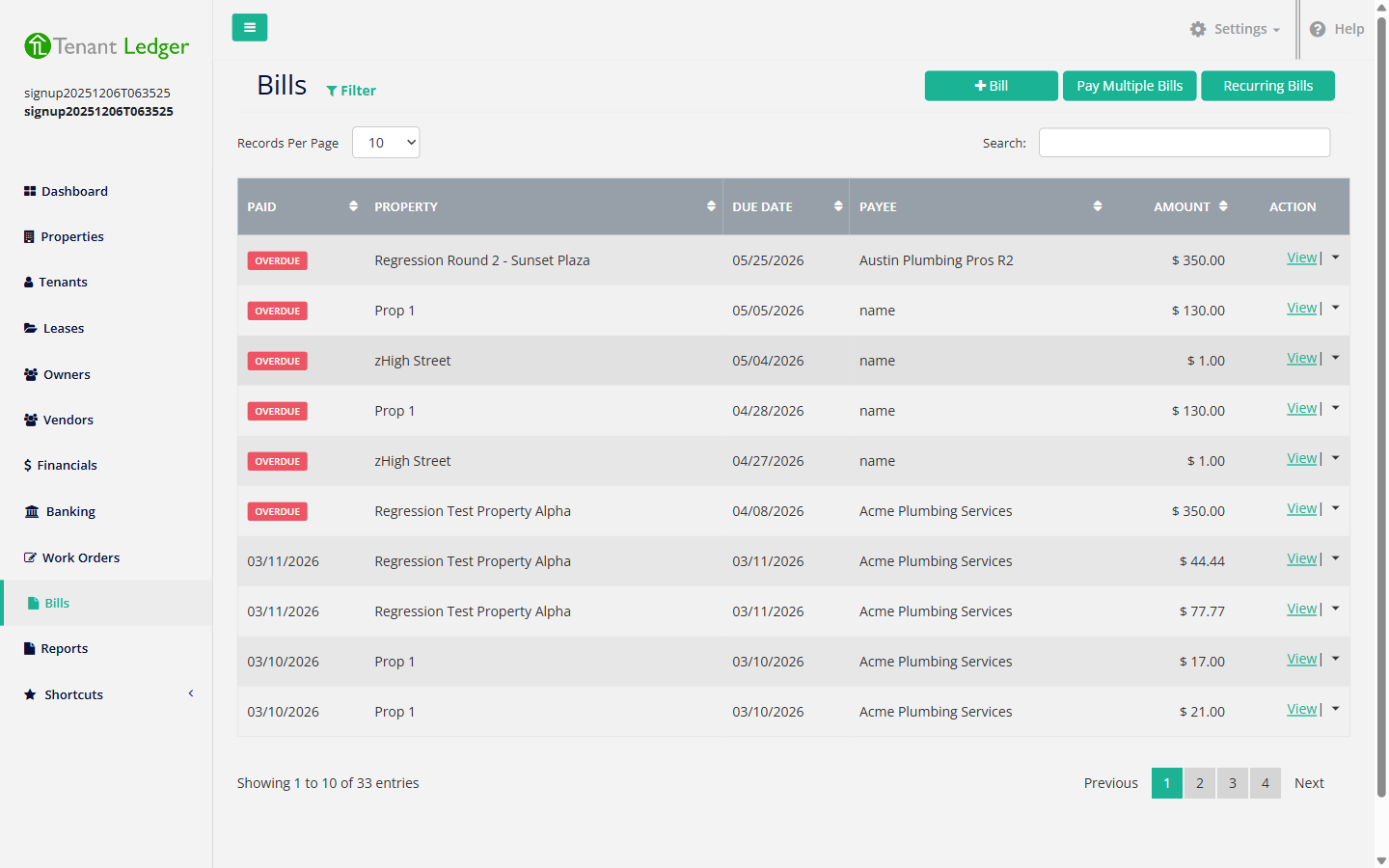
In the left sidebar, click Bills.
-
Click the bill you want to pay to open its Summary page, then choose Pay Bill from its Actions menu.
-
Fill in the payment details:
- Date (required) — the payment date (defaults to today). This is the date the money leaves the account and the date the payment clears against on reconciliation.
- Pay By (required) — choose Check, Cash, or EFT.
- Print Check (required when paying by Check) — choose Yes to have the app generate a printable check, or No if you’ve already written the check by hand. If you choose No, you can type the Check # you used.
- Memo — an optional note that appears on the payment and (for printed checks) the check voucher.
- Bank Account (required) — the account the money comes from. Its balance goes down by the payment amount.
-
In the line-item table, confirm or adjust the amount being paid on each expense line. To pay the bill in full, leave the amounts at the full remaining balance; to make a partial payment, lower the amounts.
-
Click Pay Bill.
What you’ll see
You return to the bill’s Summary with the payment listed under Payments. The bill is marked PAID when fully paid, or stays DUE with a reduced balance if you paid only part. If you chose Print Check: Yes, the check PDF opens in a new browser tab ready to print.
Tips
- The amounts you enter per line must add up to the total payment, and you can’t pay more than a line’s remaining balance.
- Paying by check with Print Check set to Yes uses the bank account’s next check number automatically, then advances it for the next check.
- A recorded bill payment can be edited or deleted later from the bill’s Summary (under Payments → the payment’s Action menu). Deleting a payment is also the first step if you ever need to delete the bill itself. See Delete a bill.
Related articles
Still stuck? Email support@tenantledger.com and a real person who knows the product will help.