
Edit a bill
Editing a bill lets you correct its details before (or after) you pay it — fix the due date, change the vendor or property, adjust a line-item amount, or re-split the expense across categories.
When to use it: any time the bill information needs correcting, for example you entered the wrong amount, picked the wrong expense account, or the vendor sent a revised invoice.
Before you start
- The bill must already exist. See Add a bill.
- If the bill has already been paid, editing it can put its total and its recorded payment out of step. It’s usually cleaner to delete the bill payment first, edit the bill, then re-pay it. See Delete a bill for how payments are handled.
Steps
-
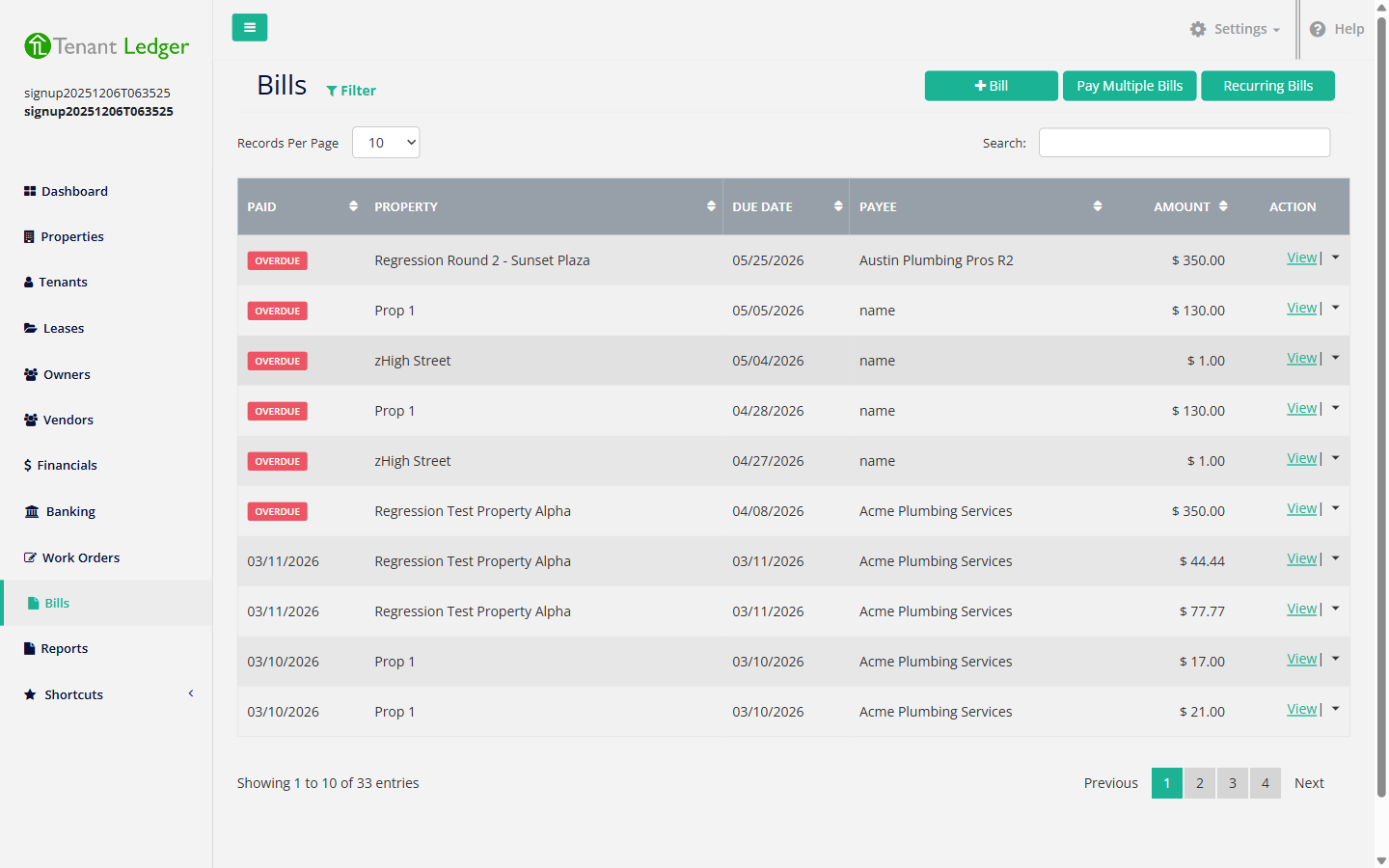
In the left sidebar, click Bills.
-
Click the bill to open its Summary page.
-
Open the Actions menu (top right) and choose Edit Bill. The edit screen opens with the current values filled in.
-
Change any of the details:
- Bill Details — Property, Date, Due Date, Vendor, Memo.
- Line items — adjust the Account, Description, or Amount on any row. Use Add Row to split across more categories or Delete Row to remove a line. The Total Amount recalculates automatically.
-
Click Save.
What you’ll see
You return to the bill’s Summary page with your changes applied. The Bills list reflects the new amount and due date, and the bill’s DUE/OVERDUE/PAID status updates to match.
Tips
- Because the total is built from the line items, change a line’s amount to change the total — there’s no separate total field to type into.
- To stop a recurring charge from generating new bills, edit the recurring bill template rather than each generated bill. See Edit a recurring bill.
Related articles
Still stuck? Email support@tenantledger.com and a real person who knows the product will help.