
Pay multiple bills at once
Paying multiple bills lets you clear several outstanding bills for one property in a single pass instead of opening each bill separately. It’s the fast way to cut checks to several vendors at the end of the month.
When to use it: when you have a batch of unpaid bills for the same property and want to pay them all from the same account by the same method. To make a partial payment, or to pay bills across different properties together, pay each bill individually instead. See Pay a bill.
Before you start
- The bills must already be entered and unpaid. See Add a bill.
- You need a bank account to pay from. See Add a bank account.
- To print checks, the bank account must have check printing set up. See Print a check.
Steps
-
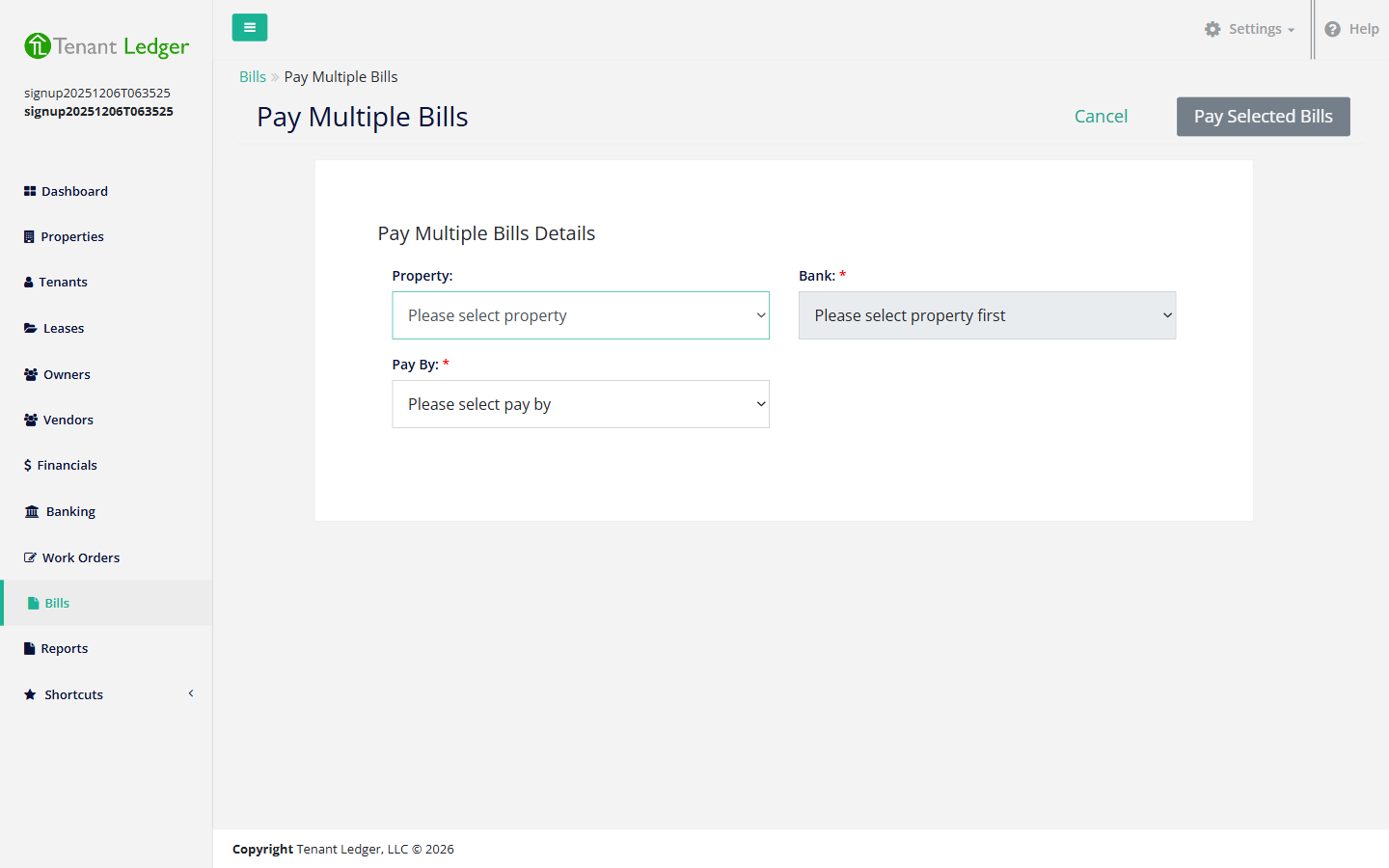
In the left sidebar, open the Shortcuts group and click Pay Multiple Bills. (You can also reach this from the Bills page.)
-
Choose the Property whose bills you want to pay. The unpaid bills for that property load in the list below.
-
Choose the Bank to pay from. (This dropdown enables once you’ve picked a property.) Every bill you select is paid from this one account.
-
Choose Pay By — Check, Cash, or EFT. The method applies to all the bills you select.
-
If you’re paying by check, choose Print Checks — Yes to generate printable checks, or No to record checks you’ll write (or have written) by hand.
-
In the list of unpaid bills, check the box next to each bill you want to pay. Review the date, amount, and reference on each row before selecting it.
-
Click Pay Selected Bills.
What you’ll see
You return to the Bills list, where each bill you paid is now marked PAID and the paying account’s balance has dropped by the combined total. If you chose Print Checks: Yes, a check is generated for each bill using the bank account’s next check number, advancing it for each one.
Tips
- Each selected bill is paid for its full outstanding balance. To make a partial payment on a bill, pay it individually instead. See Pay a bill.
- Already-paid bills don’t appear in the list, so you can’t accidentally pay the same bill twice.
Related articles
Still stuck? Email support@tenantledger.com and a real person who knows the product will help.