
Delete a bill
You can remove a bill you entered by mistake or no longer need. To protect your records, the app blocks the deletion while the bill has a payment applied to it.
Before you start
- Deleting is a soft delete: the bill is hidden from your active lists, but the underlying history is preserved.
- An unpaid bill (one with no payment recorded against it) can be deleted right away.
What blocks this delete
The app will not delete a bill that has any payment applied — whether the bill was paid in full or only partially. If you try, the delete is stopped and you’ll see a message such as:
“You cannot delete this bill because it was paid or partially paid.”
(Behind the scenes the same rule reads: “This bill cannot be deleted because it has N payment(s) applied. You must delete the payment(s) first before deleting this bill.”)
What to remove first, in order:
- Open the bill’s Summary page and find the payment under the Payments section.
- Delete the bill payment. If that payment was included in a bank reconciliation, the payment itself is protected — you must first delete (or detach via Unreconcile) the reconciliation, then delete the bill payment. See Undo or delete a reconciliation.
- Once no payments remain on the bill, delete the bill.
Steps
-
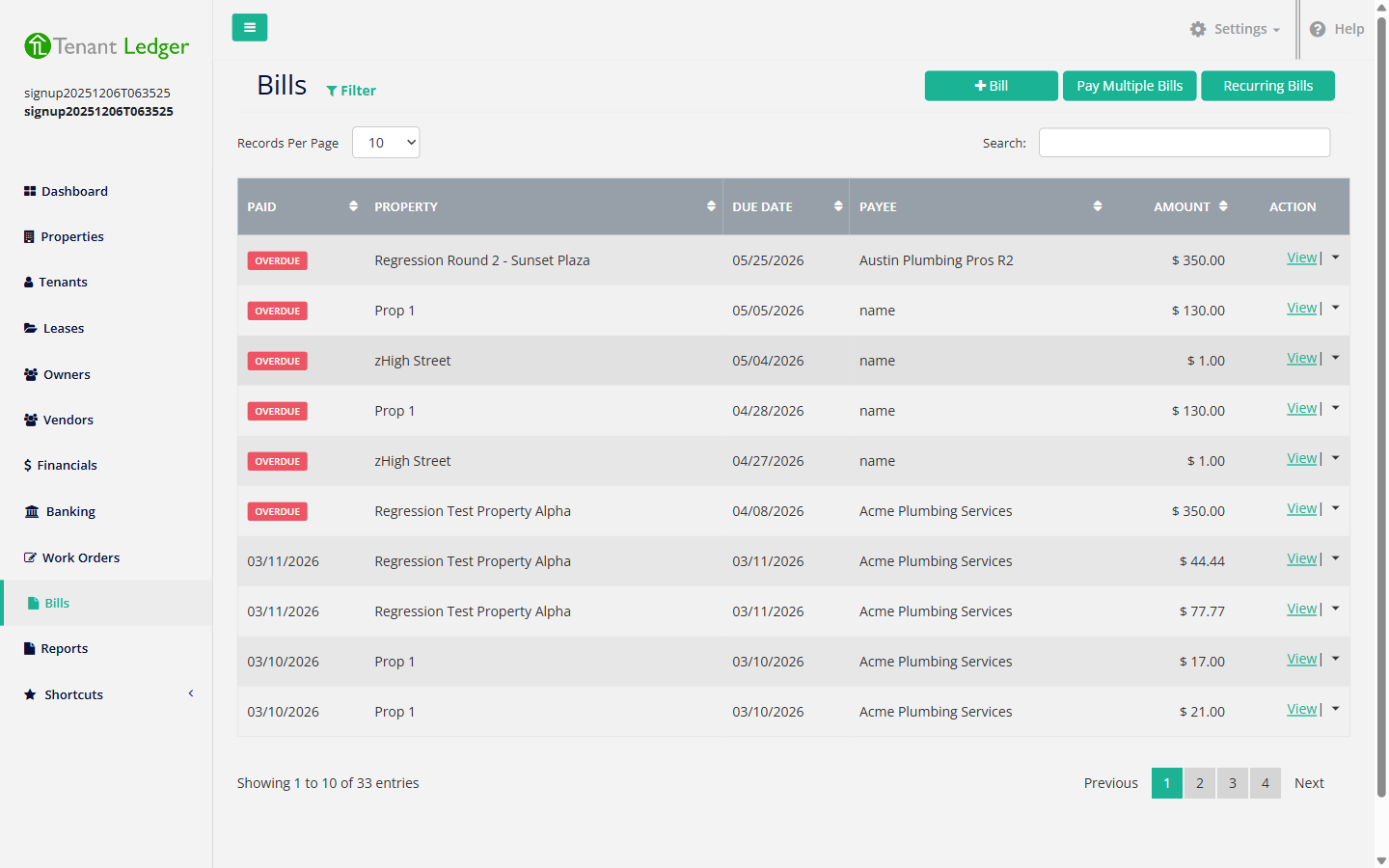
In the left sidebar, click Bills.
-
Click the bill to open its Summary page.
-
Open the Actions menu (top right) and choose Delete Bill.
-
In the confirmation pop-up (“Please confirm that you would like to DELETE this Bill”), click DELETE.
What you’ll see
If the bill has no payments, it’s removed from the Bills list and you see a confirmation that the bill was deleted. If a payment is still applied, the page stays on the bill’s Summary and shows a warning that the bill can’t be deleted because it was paid or partially paid — remove the payment first, then try again.
Tips
- Deleting a paid bill is a multi-step job by design: delete the reconciliation (if any) → delete the bill payment → delete the bill. Each step has its own confirmation.
Related articles
Still stuck? Email support@tenantledger.com and a real person who knows the product will help.