
Reverse a deposit (returned or bounced payment)
Reverse a deposited payment when the bank returns it — a bounced or NSF (non-sufficient-funds) check, for example. Reversing puts the original charge back as unpaid, removes the money from your bank balance, and optionally adds a fee to the tenant for the returned payment, all while keeping a clear record of what happened.
Reversing is different from deleting. Reverse a payment for a real-world return (a check bounced). It keeps an audit trail of the original payment and the return. Deleting a deposit, by contrast, just un-groups a batch you built incorrectly. See Delete a deposit.
Before you start
- The payment you’re reversing must already be part of a deposit, and that deposit must not be reconciled (a reconciled payment can’t be reversed from the deposit until the reconciliation is removed). See Undo or delete a reconciliation.
- Decide whether you want to charge the tenant a returned-payment fee (such as an NSF fee), and which income account that fee should post to.
Steps
-
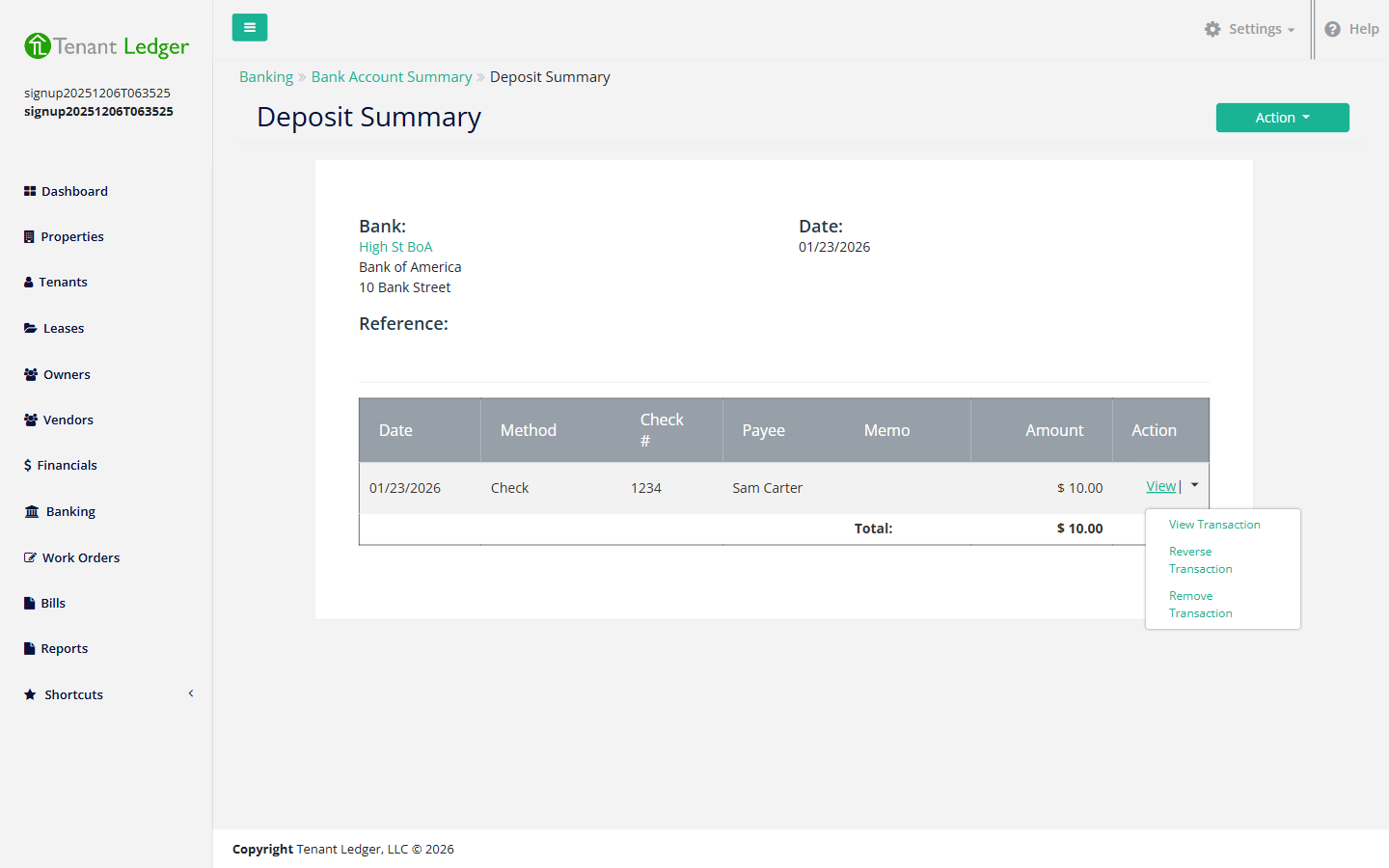
Open the deposit that contains the returned payment: from the left sidebar click Banking, open the bank account, and open the deposit’s Summary page.
-
In the list of payments on the deposit, find the returned payment, open its row Action dropdown, and choose Reverse Transaction. This opens the Deposit Reversed screen for that payment.
-
Enter the Date of the reversal (the date the bank returned the payment).
-
Add an optional Memo explaining why the payment was reversed, for example “Check returned NSF”.
-
(Optional) To charge the tenant a fee for the returned payment, check the add-fee option and enter:
- The Account the fee should post to (for example “NSF Fee” or “Late Fee”).
- The Charge Date.
- The Amount of the fee.
-
Click Save.
What you’ll see
You land on the deposit-reversed summary. The original charge is marked unpaid again, the reversed amount is subtracted from the bank account’s balance, and — if you added a fee — a new charge appears on the tenant’s ledger. The payment now shows as REVERSED on the deposit, so the history of both the payment and its return is preserved.
Tips
- Reverse the payment instead of deleting it. Reversing keeps a clear audit trail of the original payment and the return, which matters for your records and for the tenant’s ledger.
- The reversal appears as its own item you can clear during reconciliation, so your bank statement’s returned-item line still lines up. See Reconcile a bank account.
Related articles
Still stuck? Email support@tenantledger.com and a real person who knows the product will help.